
Confirm the exact model
Read the full model code from the device or its Razer support page; compare it with the compatibility table and current official list.
Browser guide · sources checked 2 October 2026
Razer Synapse Web lets you make quick settings changes to a limited set of supported Razer devices in a desktop browser. Check your exact model code first, then open Razer’s official Web app.
Quick answer: the Web app is still listed as Beta in Razer’s public release notes. Razer lists Windows 11 and macOS 26, plus current Chrome, Edge or Opera with WebHID. It does not need a browser extension or separate driver when device firmware is current. It is not a replacement for Synapse 4’s full desktop controls.
Start here
Razer Synapse Web is a browser-based configuration tool, not a universal settings page for every Razer product and not a downloadable Windows installer. Its useful promise is narrower: open the official app, connect a supported device, and make the quick changes that device exposes without installing the desktop client.
Start by matching the complete model name and product code on the device, box or product support page against Razer’s supported-device list. Names such as Huntsman V3 cover several different products; a family-name match alone is not enough to establish Web compatibility.
Razer’s FAQ says an up-to-date supported browser with WebHID is required, and that current device firmware removes the need for a separate browser extension or driver. The app needs internet access to load. Razer says it can continue working offline after loading until that browser session is closed.
Think of Web as a quick configuration route for a short, explicitly supported device list. The current public changelog labels it Beta. If your model is missing, you need advanced controls, or you expect cloud profile sync, use the desktop Synapse 4 guide linked on this page. Do not download a file advertised as a Web installer: the official Web app opens in the browser and no separate EXE appears in the Razer sources checked.
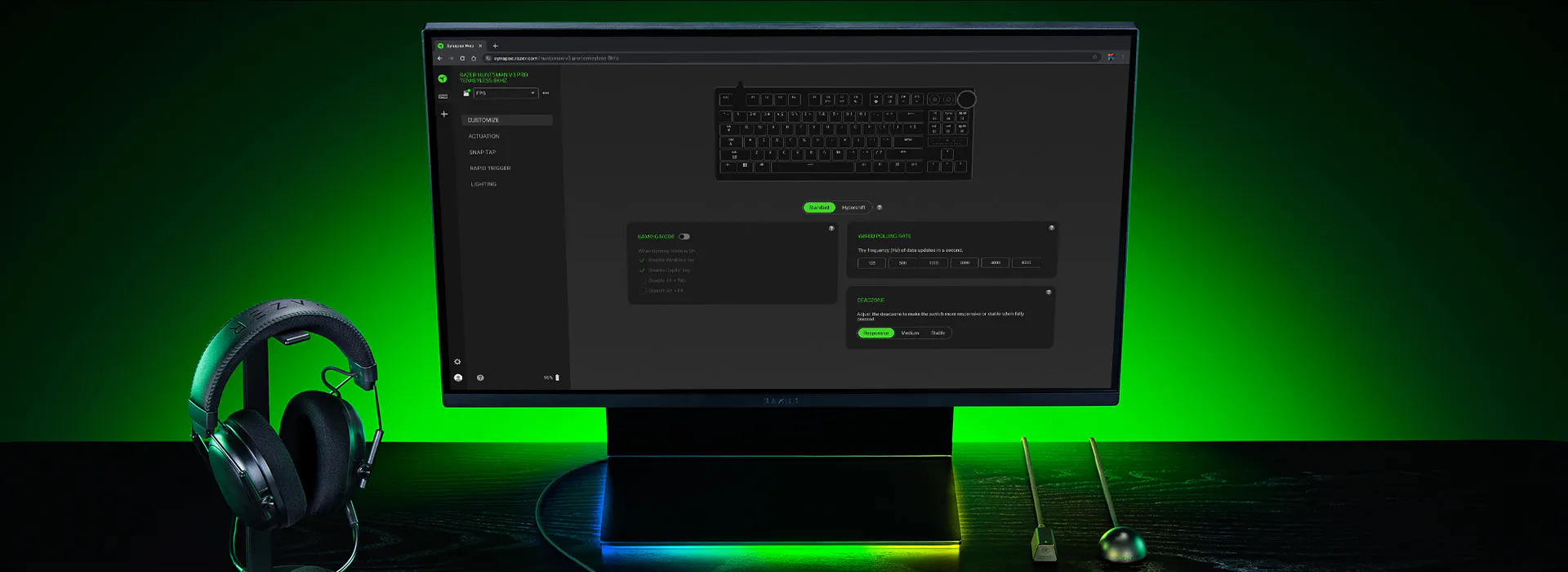
Check the exact model
Razer’s supported-device article is marked updated 20 August 2026. Its listed models include two 2026 Blade laptops, eight Huntsman keyboards and the Viper V4 Pro. A later Razer Web patch note dated 25 August adds the DeathAdder V4 Pro after a firmware update, so the list page and later release notes do not carry the same update date.
Treat the table as a verified snapshot rather than a permanent compatibility guarantee. Compare the code printed on your exact unit with the code below, then open Razer’s live list before connecting. If a product family or SKU is absent, do not assume that a similar-looking model works.
Model names are easy to confuse across a product generation. For example, the official list names specific Huntsman editions and their product codes; it does not say that every Huntsman V3 keyboard is compatible. Check the exact code on the underside, product label or Razer support page, and use the live support article as the final source if a later Web update changes the list.
Before opening the app
The official FAQ names Windows 11 and macOS 26 as verified operating systems and lists Google Chrome, Microsoft Edge and Opera as supported browsers. It notes that other desktop operating systems may work with Chromium-based browsers, but calls out the listed systems as the verified baseline. Safari and Firefox are not listed as verified choices.
WebHID is the browser feature that lets a website request access to a compatible USB device or wireless receiver. When the app asks to connect, select the correct device in the browser’s chooser. If access was denied earlier, review the site’s device permission and reload the app. Updating the browser does not add a missing device to Razer’s compatibility list.
Firmware is a separate requirement from browser permission. Keep the firmware for the exact device current; the Razer DeathAdder V4 Pro updater release notes specifically say firmware v1.21.00_r1 adds WebHID support to model RZ01-0533. Check the product’s own update page rather than installing firmware for a similar-looking device.
First connection
Use the official app link, not a mirror that advertises a Synapse Web installer. The Razer Web product opens at synapse.razer.com. There is no separate Web EXE in the Razer sources checked for this guide; if you need the desktop application, use the Synapse 4 download guide.
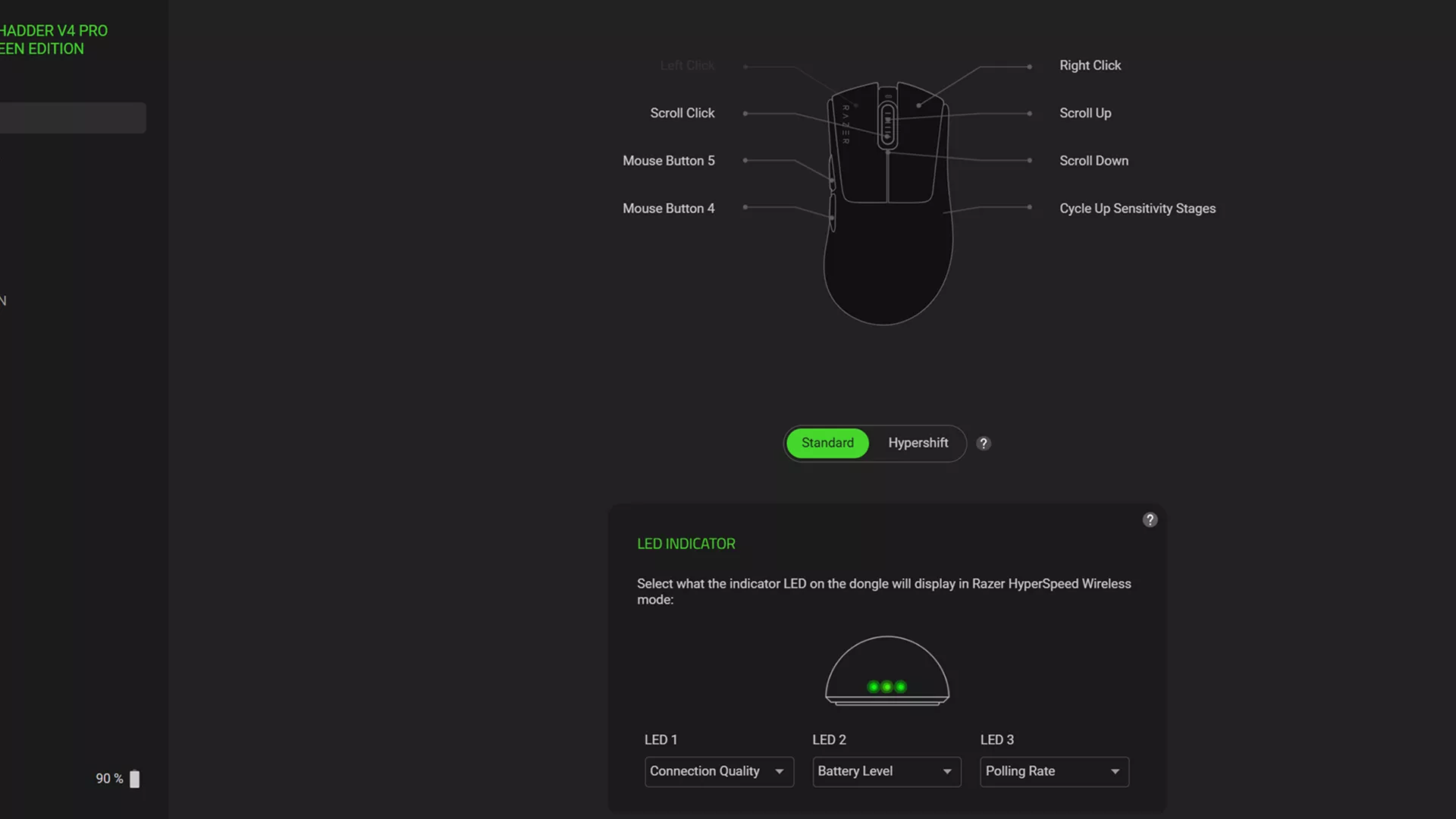
The image shows Razer’s own DeathAdder V4 Pro Web settings view. Its patch notes require current firmware for Web support. Other products may show different controls, so follow the device-specific support page and confirm a change on the hardware after applying it.
After connecting, make one change at a time and verify it on the device. Razer describes Web as a simplified interface for quick adjustments, not a complete configuration environment. The visible choices depend on the model, and settings in a browser session should not be treated as a guaranteed cloud backup or automatic Synapse 4 migration.
Read the full model code from the device or its Razer support page; compare it with the compatibility table and current official list.
Install the latest firmware published for that exact SKU. The DeathAdder V4 Pro Web note specifically requires current firmware.
Use current desktop Chrome, Edge or Opera on a listed operating system, with the device connected in a supported mode.
Approve the WebHID device chooser for the correct Razer device. If you previously blocked access, change the site permission and reload.
Make one change, check it on the device, and confirm the profile or setting behaves as expected before changing more.
If the device is missing
First confirm the exact SKU is listed. Then update the firmware from that model’s Razer support page, refresh the browser and use Add Device again. A device that works as a basic mouse or keyboard may still be outside the smaller Web configuration list.
Next check the browser: use Chrome, Edge or Opera with WebHID, make sure the browser is current, and allow the site’s device prompt. If the picker does not reappear, review the site’s USB/HID permission, reconnect the device using the method in its manual and reload the Web app.
As a practical troubleshooting step, close another Synapse Web tab or desktop Synapse session that may already be controlling the device, then reconnect and retry. If the model still does not appear, use Razer’s product-specific support page. For unsupported models or more advanced settings, move to the Synapse 4 desktop guide rather than searching for unofficial drivers.
Do not start by reinstalling a desktop program that is not installed. The Web app runs in the browser, so first separate a model-compatibility issue from a browser permission or firmware issue. If all checks pass but the official app still does not list the device, record the model code and contact Razer support.
Choose the right tool
Choose Web when you want a quick adjustment for an explicitly supported device and prefer not to install the desktop app. Choose Synapse 4 when your model is not on the Web list or you need a broader configuration workflow. This is a feature boundary, not a claim that every desktop feature is available on every Synapse 4 device.
Razer’s Web FAQ says the browser version provides a simplified interface and does not currently support Cloud Sync. It points users to Synapse 4 for advanced functionality and complete configuration. Keep important settings documented before switching tools; the Web FAQ does not promise automatic profile migration between the two.
Version and source check
On 2 October 2026, the newest public Razer Insider Web patch note located for this check was dated 15 September and listed Synapse Web V.2608140536. It remains labelled Beta. That note allows the Last Used Synapse Profile to be unlocked and edited. A public changelog is a dated evidence point, not a guarantee that no newer build has appeared since you read this page.
Razer’s 1 October Windows patch notes list Synapse 4 build 4.0.86.2609221012 and Chroma build 4.0.63.2609150212. The official Windows installer file checked for the related desktop guide is RazerSynapseInstaller.exe: HTTP 200, Range HTTP 206, application/x-msdownload, 14,923,464 bytes, with CDN Last-Modified 8 September 2026. That timestamp is earlier than the 1 October notes, so it does not prove that the file itself embeds the later build. The Web app has no separate EXE download.
Primary sources
Use Razer’s live support list and dated release notes when confirming support or software freshness; model compatibility and builds can change after this snapshot.
FAQ
It is Razer’s browser-based configuration tool for a limited set of supported devices. Open the official app at synapse.razer.com; do not look for a separate Web installer.
Only the exact models on Razer’s current supported-device list and dated Web release notes can be confirmed. Compare the complete SKU and recheck the live list because new models may be added between article updates.
Razer says the Web tool does not require a browser extension or separate driver when compatible device firmware is current. You still need an up-to-date supported browser; Synapse 4 remains the desktop option for broader features.
Check the exact model, update its firmware, use a current Chrome, Edge or Opera browser with WebHID, approve the device prompt, then reload and choose Add Device. If it is missing from Razer’s list, Web support is not confirmed.
The official list and release notes checked on 2 October 2026 did not confirm that exact model. Check Razer’s live supported-device list before connecting; use the desktop Synapse route if you need settings now.
No. Razer describes Web as a simplified browser interface for quick adjustments and says it does not currently support Cloud Sync. Use Synapse 4 for advanced and complete configuration.