
Reconnect directly
Use a rear motherboard USB port on desktop PCs when possible and avoid hubs while testing.
Repair guide
If Razer Synapse is installed but your keyboard, mouse, headset, or controller is missing, start with connection and service checks before downloading another installer.
The safest path is to separate three problems: the device is not detected, the app will not open, or the installer itself failed. This guide focuses on the first two states and keeps download links pointed at official Razer pages.
Start here
Do not start by hunting for a mirror EXE. When Razer Synapse is not detecting a device, the fastest safe workflow is to decide whether Windows sees the device, whether Synapse opens normally, and whether the issue started after an update, a USB change, or a version switch.
If Windows does not see the device at all, Synapse cannot fix the missing hardware signal. Try another USB port, remove a hub, reconnect directly to the PC, and confirm the device appears in Windows Device Manager before spending time on Synapse repair.
If Windows sees the hardware but Synapse stays blank, loads forever, or crashes, the problem is more likely a service, permission, security, or corrupted app state. In that case, repair Synapse before reinstalling and avoid switching between Synapse 3 and Synapse 4 without a reason.
This page treats Razer Synapse 4 as the current download path. Razer's Synapse 3 FAQ now says Synapse 3 cloud services ended on February 3, 2026, so Synapse 3 should be handled as legacy status information rather than a normal fresh install recommendation.
Latest official Windows builds
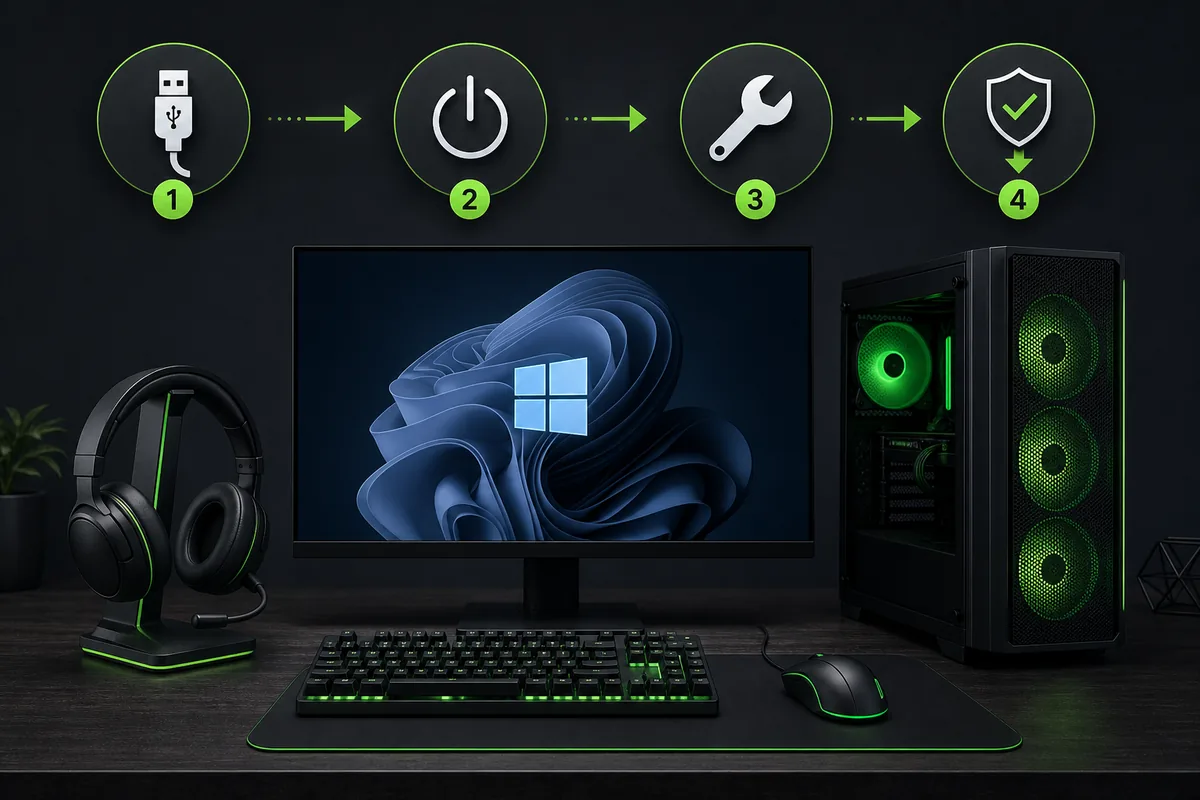
Razer’s October 1 notes list Synapse 4.0.86.2610200951 and Chroma 4.0.63.2610020954 and state the Windows 10 support transition. If the device is still missing, continue with the model, firmware, and USB checks; the note does not say every detection issue is resolved.
Device detection
Device detection is a chain. The hardware must be stable in Windows, the Razer background components must be running, and Synapse must load the correct module. Skipping the hardware checks can lead to repeated reinstalls that never solve a loose hub, bad cable, or asleep USB controller.
Start with the simplest physical test. Connect the device directly to the PC, not through a monitor, dock, KVM switch, or unpowered hub. Wait a minute after reconnecting because Windows and Synapse may need time to reload device services.
Then check whether the device appears in Windows Device Manager. If it appears with a warning symbol, update Windows, restart, and try a different port. If it works on another computer but not this one, the issue is probably local Windows state or a blocked Synapse component.
For headsets and wireless devices, also confirm the dongle, receiver, or cable mode. A device can light up but still fail to expose the control interface Synapse needs.
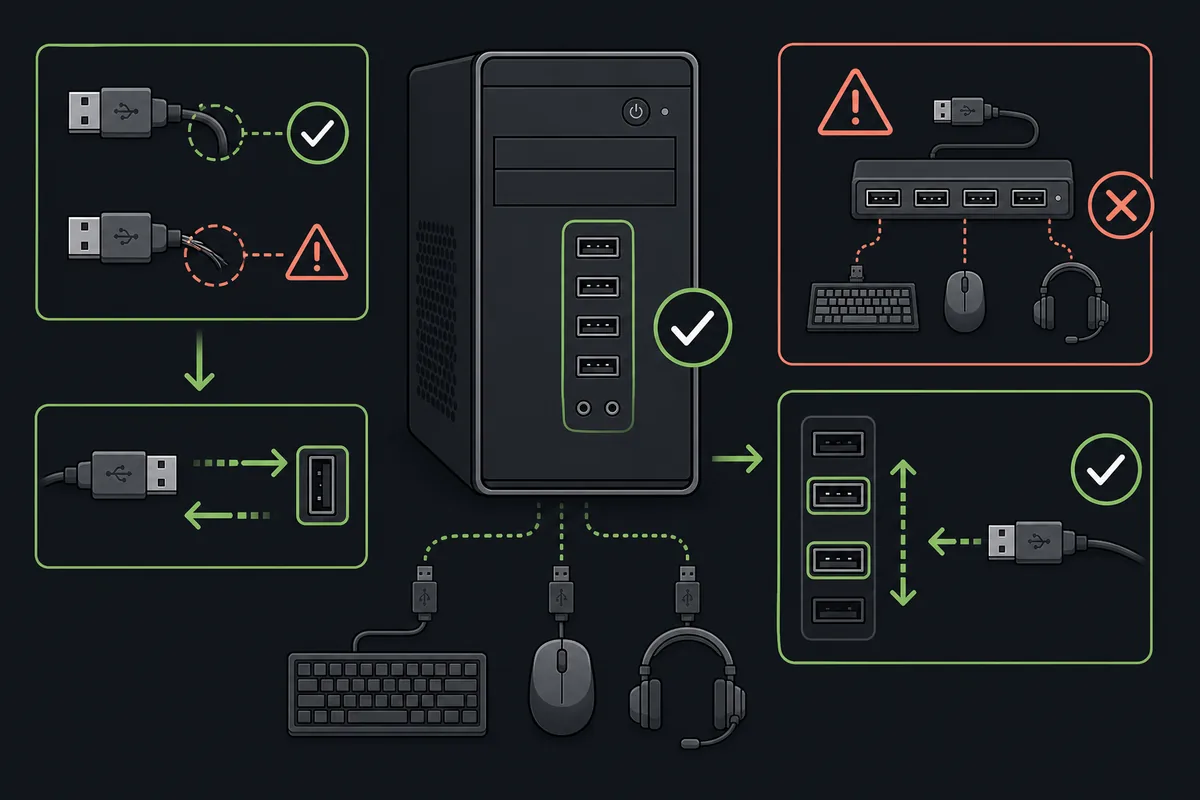
Use a rear motherboard USB port on desktop PCs when possible and avoid hubs while testing.
Confirm the device appears in Device Manager without warning icons before blaming Synapse.
Close Synapse, reconnect the device, and reopen Synapse after Windows finishes device setup.
Keep only the problem keyboard, mouse, headset, or controller attached while isolating the issue.
App repair
If Razer Synapse opens but never finishes loading, do not immediately replace the installer. Razer's support guidance for crashes and failed startup points users toward permission, antivirus, firewall, and RazerAppEngine checks before a clean reinstall.
Run Synapse as administrator once. If security software recently quarantined or blocked a Razer component, allow the official Razer process rather than turning off protection globally. The goal is to remove a block, not to weaken the system.
Open Task Manager and check whether RazerAppEngine is present and consuming normal resources. A stuck or blocked background engine can make the interface look empty even when the app window appears. Restarting Windows is often cleaner than killing random processes repeatedly.
If repair still fails, use a clean reinstall from the official Razer source. Do not mix a Synapse 3 package, Synapse 4 package, and third-party driver bundle in the same repair attempt.
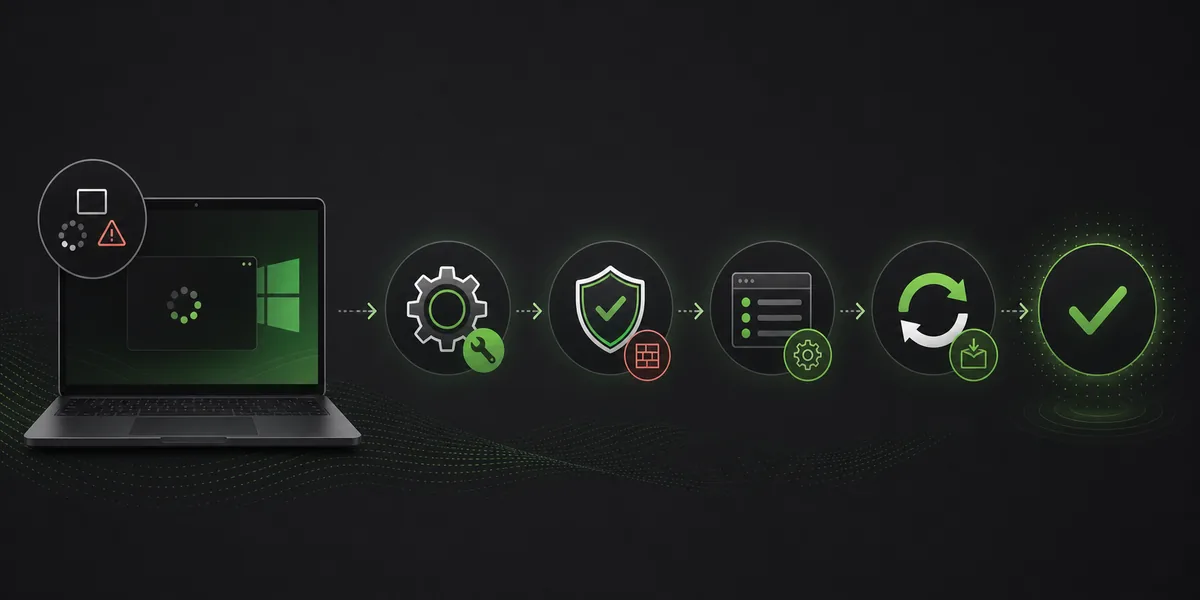
Use it as a diagnostic step, not as a permanent workaround for every launch.
Confirm antivirus or firewall rules are not blocking RazerAppEngine or the official app.
A full restart resets device services and background components more safely than random process killing.
Only reinstall after connection, permissions, and background service checks have failed.
Version context
A device detection issue can become worse when the user changes versions without checking the support status. Synapse 4 is the current official path and Razer's Synapse 4 page lists Windows 11 x86-64 and Windows 10. Use that page for current installation.
Synapse 3 is different in 2026. Razer's Synapse 3 FAQ states that Synapse 3 cloud services permanently shut down on February 3, 2026 and that users should move to Synapse 4 for configurations. That makes unofficial Synapse 3 installer mirrors especially risky.
If your older setup still relies on Synapse 3, use Razer's FAQ as a status source and make profile or device decisions carefully. Do not treat a random 'legacy download' as a supported fix for a device that Synapse 4 cannot see.
Safety
Reinstalling is useful only after you know what failed. If a cable, hub, Windows driver state, or blocked background service is the real cause, a new installer may waste time and increase the chance of mixing versions.
Do not download a file just because a forum reply says it fixed the same symptom. Device configuration software controls profiles, macros, lighting, DPI, and account-linked settings. Keep the repair path tied to Razer-owned pages and observable Windows behavior.
Escalate to Razer support when the device works on another PC, Windows sees it correctly, Synapse 4 is current, and the app still refuses to detect it after repair. At that point, model-specific compatibility or firmware state may matter.
Official checks
These links were checked for version and repair context on October 24, 2026. This site does not host installers.
FAQ
The common causes are USB connection state, Windows not recognizing the device, a blocked Synapse background component, an outdated app module, or a version mismatch. Check Windows detection first, then repair Synapse.
Only after direct USB, Device Manager, restart, security block, and app repair checks fail. Reinstalling too early can hide the real cause.
Usually no. Razer's Synapse 3 FAQ says Synapse 3 cloud services ended on February 3, 2026. Treat Synapse 3 as legacy status information and use Synapse 4 for current configuration when supported.
Run Synapse as administrator once, check whether antivirus or firewall software blocks RazerAppEngine, restart Windows, then use an official clean reinstall if the problem remains.
Avoid third-party repair tools and reuploaded installers. Use Razer-owned pages for downloads and support instructions.
Razer's latest public Windows release note, dated October 21, 2026, lists Synapse 4.0.86.2610200951 and Chroma 4.0.63.2610020954. We verified it on October 24. The stable installer endpoint is versionless and its checksum was not verified.