
Check the system tray
Select the hidden-icons arrow near the Windows clock. If Synapse is already running, open its existing window instead of starting repeated copies.
Windows troubleshooting
If Synapse is already installed but no window appears, first close only a clearly frozen Synapse app process and restart Windows. Then check for a hidden window, a pending in-app restart, or a damaged installation before reinstalling.
This guide covers the installed Windows app that will not launch or closes during startup. It does not cover an installer that fails before setup finishes, or a device that is missing after Synapse opens.
Start here
Razer Synapse not opening on Windows? Start with a single restart and one clean launch from the Start menu. A hidden tray window or a previous process that did not close can make a second click appear to do nothing. If the app briefly appears and closes, note that separately; it points to a startup or local-install problem rather than a download problem.
The exact cause cannot be identified from the symptom alone. Pending app updates, an interrupted Windows restart, a background component that did not load, security software, or damaged local files are possibilities, not a diagnosis. Work from reversible checks toward repair.
Separate the symptoms
Before changing settings, describe the last visible state. That keeps the Synapse not-opening problem separate from setup, updates, and device detection, which have different fixes.
Low-risk fixes first
Try one check at a time and attempt to open Synapse after each one. If a step changes the symptom, stop there instead of continuing into a reinstall. On a work-managed PC, ask the administrator before changing security or startup policies.
Select the hidden-icons arrow near the Windows clock. If Synapse is already running, open its existing window instead of starting repeated copies.
In Task Manager, close a clearly named, unresponsive Synapse desktop app entry only. Do not end unfamiliar Razer services or delete their files.
Choose Start, Power, Restart. After sign-in, wait briefly for startup tasks to settle, then make one launch attempt.
Search for Razer Synapse and open the installed app. Avoid old taskbar shortcuts or a downloaded installer while diagnosing the app itself.
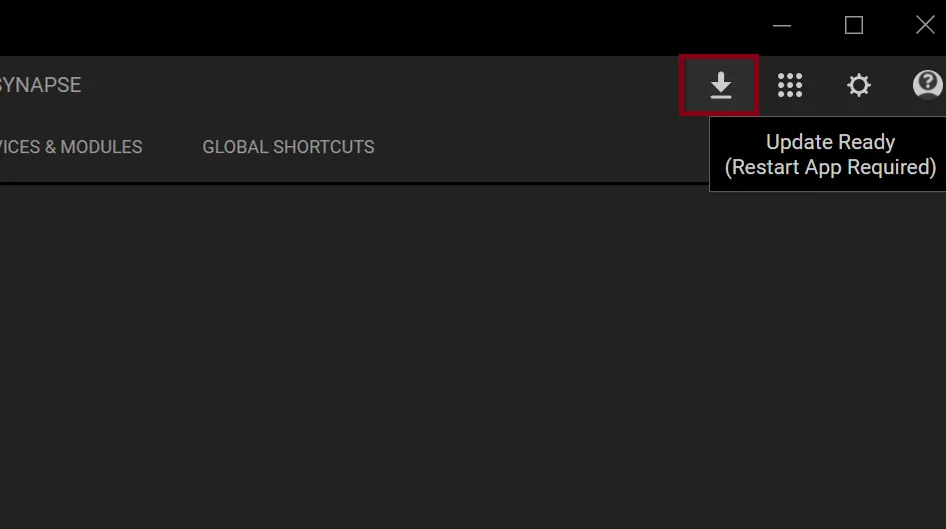
If Synapse displayed an update-ready message, save other work and use the prompt to restart the app. Do not start a second installer to clear an in-app update notice.
Check recent Windows Security or endpoint-protection history for a specific blocked Razer component. Do not disable protection globally; ask the device administrator if a work policy is involved.
Use an offered repair option or follow Razer's install/upgrade instructions after the earlier checks fail. Restart once after repair and test before making more changes.
After an update
Razer's support screenshot below shows an Update Ready state with a restart-app notice. If that is what you see, save other work, use the in-app restart, and wait for the app to reopen. A restart prompt by itself does not prove that the installer is damaged or that you need to download another copy.
If Synapse still closes after the restart, return to the symptom table. An update prompt belongs to the update guide; a completed installation whose desktop app will not launch belongs here. Check Razer's current support instructions before removing files or switching between Synapse branches.
Repair and reinstall
Move to repair only when a Windows restart, a clean app launch, and the pending-update check have not changed the result. If the official installer offers a repair path, follow the on-screen choices and let one setup finish. If it does not offer repair, use Razer's official install or upgrade instructions instead of inventing a cleanup sequence.
Before an uninstall, write down the device models and any profile names, DPI stages, macros, or lighting settings you cannot easily recreate. Do not assume every setting can be exported or restored. Keep downloaded configuration files separate from installers, and do not delete user-profile folders or registry entries as a first-line fix.
This is a software-download site, so we rechecked the first-party path on September 23, 2026. Razer's Synapse 4 product and support pages remained reachable. The stable official Windows installer returned HTTP 200, MIME application/x-msdownload, 14,923,464 bytes, and Last-Modified 2026-09-08 05:47:37 GMT. The public sources checked did not expose a dependable semantic build number or checksum; these file details are not a security scan.
First-party references
Use Razer's own product and support pages for current branch, update, and installation instructions. The live installer URL is included as a source reference, not as a claim that a repair needs a new download.
FAQ
When Razer Synapse won't open, first check whether it is already running in the system tray or stuck as an unresponsive desktop app. Close only the clearly frozen app, restart Windows, and launch it once from the Start menu.
Restart Windows, check the tray and Task Manager, open the installed app from Start, and finish any in-app restart prompt. If it still closes, use Razer's official repair or install guidance as a later step.
Look for an existing window or tray icon first, then close a clearly unresponsive Synapse app entry and restart once. Do not end unfamiliar background services or repeatedly launch the installer.
Not as the first step. Restart Windows, retry once, check whether a recent update is waiting for an app restart, and review specific security blocks. Reinstall only after these lower-impact checks fail.
A reinstall does not guarantee that every profile or device setting will be restored. Record important profile names, DPI stages, macros, and lighting choices first, and follow Razer's current instructions.
No. This guide covers an already-installed desktop app that will not launch. If setup stops before installation finishes, use the install-failed guide; if Synapse opens but a device is missing, use the device-detection guide.