
Component guide
Razer App Engine: 6 Checks Before You Kill or Reinstall It
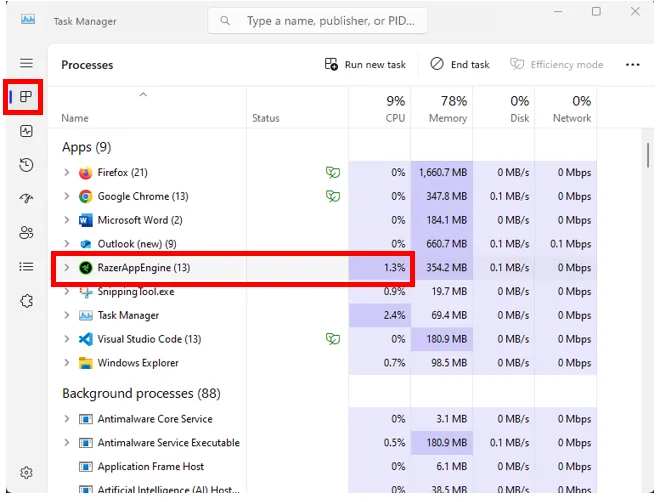
Razer App Engine is one of the background components that helps Synapse 4 launch, load modules, and manage connected Razer devices.
Do not delete it just because it appears in Task Manager. First decide whether you are seeing a normal Synapse background process, a launch failure, a memory spike after startup, or a broken installation.
Quick answer
What Razer App Engine Does in Synapse 4
Razer App Engine is best treated as part of the current Synapse 4 application layer, not as a separate driver download. When Synapse starts, the component can appear in Task Manager while modules, device pages, account state, lighting controls, and background services load. Seeing the process by itself is not proof of malware or a failed update.
The useful question is what changed. If Synapse opens normally and device pages work, leave the process alone. If the app crashes, hangs on a blank loading screen, shows high memory for a long time, or reappears after you end it, move through a structured repair path. Killing the process repeatedly can hide the original error and leave the installer in a partial state.
What you see
Likely meaning
Best first move
Brief memory spike after opening Synapse
Modules and device pages are loading
Wait, then verify one device page
Synapse fails to start
Blocked service, permissions, or corrupt app state
Run Synapse as administrator and restart Windows
Process returns after End task
Background component is managed by Synapse
Repair the app instead of deleting files
High memory never settles
Module loop, stale install, or device/plugin issue
Check Razer support steps and reinstall last
Latest official Windows builds
Current Razer Synapse 4 and Chroma versions checked October 24, 2026
Razer’s official Windows release note dated October 21, 2026 list Synapse 4.0.86.2610200951 and Chroma 4.0.63.2610020954 and state the Windows 10 support transition. This is the latest public Windows build record verified on October 24. The stable Razer CDN installer returned HTTP 200, application/x-msdownload, and 14,923,464 bytes on that date; no checksum was verified. Razer lists Windows 11 x86-64 and Windows 10. Full Synapse 4 support on Windows 10 ends October 14, 2026; security-only bug fixes continue through October 12, 2027.
Memory check
When High Razer App Engine Memory Is Normal - and When It Is Not
Razer's own Synapse 4 support explains that higher memory use can happen because the app runs multiple modules and background components. That does not mean every spike is acceptable, but it changes the order of troubleshooting. Measure after Synapse has fully opened, not during the first seconds of startup or while Windows is also launching device services.
Use Task Manager as evidence, not as the only fix. Sort by memory, watch whether Razer App Engine settles, then open one device page in Synapse. If memory rises only while a device page, Chroma Studio, macro editor, or firmware prompt loads, record the module and device model. If memory stays high after a clean restart with no device interaction, the problem is more likely a stuck component or corrupt installation.
Startup repair
Fix Razer App Engine When Synapse Crashes or Will Not Start
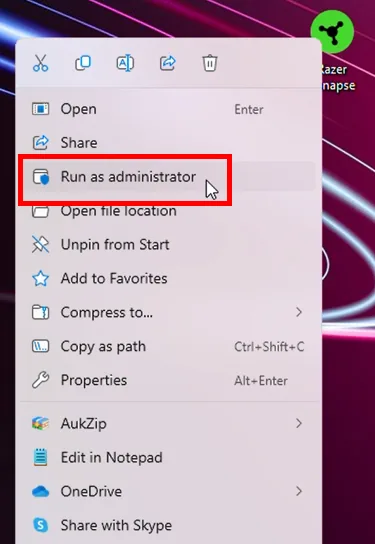
Start with the official crash-and-startup sequence: restart the PC, run Synapse as administrator, check whether security software, firewall, VPN, proxy, or incorrect system time is blocking the app, and confirm that Windows can still see the connected Razer device. These checks are low risk because they do not remove profiles, macros, or Chroma settings.
If the app opens after elevation, do not keep launching it as administrator forever without understanding the cause. Check whether Windows permission changes, endpoint security, controlled-folder access, or a corporate profile blocked the normal user account. If only one device fails inside Synapse, switch to the device-detection guide; Razer App Engine may be healthy while the hardware path is not.
Restart once
Clear a blocked Synapse window and let Razer services start in a normal Windows sequence.
Run as administrator
Use this as a diagnostic step when Synapse crashes or never finishes opening.
Check security filters
Review antivirus, firewall, VPN, proxy, and time settings before reinstalling.
Verify Windows device state
If Windows does not see the device, Synapse cannot fix that signal alone.
Repair or reinstall last
Use official Razer sources only after the low-risk checks fail.
Repair path
Repair, Clean Reinstall, and Driver Clean-up Tool Boundaries
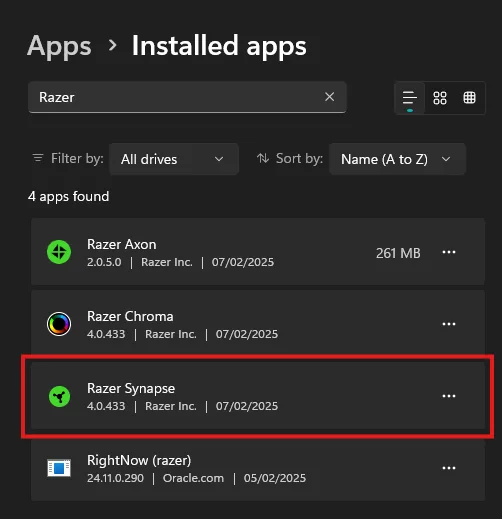
A Razer App Engine problem does not always require a clean reinstall. Use normal app repair first when Synapse still appears in Windows Installed Apps and the official support flow suggests repair or reinstall. Keep one branch in mind: mixing Synapse 3, Synapse 4, old drivers, and third-party cleanup utilities can make the next error harder to read.
The Razer Driver Clean-up Tool is a separate official utility for driver cleanup situations. It should not become a default answer to every App Engine process, memory, or launch issue. Use it only when the support context points to driver cleanup or when a previous install left device drivers in a bad state. For an ordinary app crash, reinstall Synapse from Razer's product page or support instructions instead of downloading a mirror package.
Safety
What Not to Do When Razer App Engine Looks Suspicious
Do not delete individual program folders, rename EXE files, block Razer services in the firewall, or install an unknown repair tool from a forum. Those actions can break Synapse while leaving Windows drivers behind. They also make it difficult to know whether the next failure came from Synapse, a device driver, or a manual change.
Also avoid claiming a third-party process scanner has verified the installer as safe unless you actually ran a current scan and can cite it. This site does not host Razer software. The safer guidance is to use official Razer pages, record the file name and source, and keep the verified installer path separate from community troubleshooting advice.
Latest official Windows builds
Current Razer Synapse 4 and Chroma versions checked October 24, 2026
Razer’s official Windows release note dated October 21, 2026 list Synapse 4.0.86.2610200951 and Chroma 4.0.63.2610020954 and state the Windows 10 support transition. This is the latest public Windows build record verified on October 24. The stable Razer CDN installer returned HTTP 200, application/x-msdownload, and 14,923,464 bytes on that date; no checksum was verified. Razer lists Windows 11 x86-64 and Windows 10. Full Synapse 4 support on Windows 10 ends October 14, 2026; security-only bug fixes continue through October 12, 2027.
Official references
Razer Sources Checked
These Razer-owned pages support the App Engine, memory, startup, reinstall, and download-source guidance in this article.
Razer Synapse crash or fails-to-start article
Official startup repair steps and RazerAppEngine Task Manager check.
Razer Synapse 4 high-memory article
Official context for Synapse 4 memory behavior.
Razer reinstall Synapse on Windows
Official reinstall flow and Windows Installed Apps screenshot.
Razer Synapse & Chroma for Windows — October 21, 2026 release notes
Official release record: Synapse 4.0.86.2610200951, Chroma 4.0.63.2610020954, and a device-detection fix.
Razer Synapse & Chroma for Windows — October 21, 2026 release notes
Official release note: Synapse 4.0.86.2610200951 and Chroma 4.0.63.2610020954; Windows 10 is now limited to security updates.
Razer Synapse & Chroma for Windows — October 21, 2026 release notes
Razer CDN installer verified HTTP 200, application/x-msdownload, 14,923,464 bytes on October 24, 2026.
FAQ
Razer App Engine FAQ
What is Razer App Engine?
Razer App Engine is a Synapse background component involved in app startup, modules, and device-control workflows. It is not a separate installer that you should download from a mirror.
Can I end Razer App Engine in Task Manager?
You can end a stuck process as a temporary diagnostic step, but if Synapse starts it again, repair the app or follow official troubleshooting instead of deleting files.
Why does Razer App Engine use memory?
Synapse 4 uses modules and background services. Memory can rise while the app loads devices or Chroma features; persistent high memory after a restart deserves troubleshooting.
Is Razer App Engine a virus?
Do not decide from the process name alone. Check that Synapse came from Razer, verify the file location and source, and avoid third-party repair packages.
Should I reinstall Synapse to fix App Engine?
Reinstall only after restart, administrator launch, security, network, and device-state checks fail. Use official Razer sources and keep one Synapse branch installed.
What is the latest Razer Synapse version?
Razer's latest public Windows release note, dated October 21, 2026, lists Synapse 4.0.86.2610200951 and Chroma 4.0.63.2610020954. We verified it on October 24. The stable installer endpoint is versionless and its checksum was not verified.