
Chroma profile guide
Razer Chroma Profiles Download: Safe Sources & Import Steps
Looking for a Razer Chroma profiles download? Start by separating a lighting effect from a complete Synapse device profile, then check the source and hardware before importing it.
Razer's official Chroma and Synapse pages explain the ecosystem, but community-made effects are not official Razer installers. Never use a profile download as a reason to run an unknown EXE, script, or security-disabling tool.
Quick answer
What You Are Actually Downloading
A Razer Chroma profile download can mean several different things: a lighting effect, a Synapse device profile, a small import package, or a page that only shows a video and asks you to install something else. Those are not interchangeable. A Chroma effect usually describes lighting layers, while a device profile can include buttons, sensitivity, keys, audio settings, or application links.
The safest starting point is the official Razer Chroma page and the current Synapse 4 workflow. Use those pages to understand supported devices and the app branch. If you choose a community gallery for an effect, treat it as user-supplied content, inspect the file before opening it, and keep the source link with your notes. This site does not host profile files or repackage them.
A useful rule is simple: a lighting file should not need an EXE installer, a browser extension, a password-protected archive, or instructions to disable Windows security. If a supposed Chroma profile asks for any of those things, stop. The download intent is still useful, but the correct next action is source review rather than a faster click.
Item
Usually contains
Source and safety check
Chroma effect
Lighting layers, colors, and timing
Use a supported Synapse or Chroma workflow; do not expect device macros
Synapse device profile
Buttons, keys, DPI, audio, or device settings
Fields depend on hardware and Synapse version
Onboard memory profile
A limited set stored on compatible hardware
It will not carry every software-only lighting or game-link feature
Repacked installer
An EXE, script, or driver bundle
Not a normal profile download; discard it and return to Razer-owned pages
Latest official Windows builds
Current Razer Synapse 4 and Chroma versions checked October 24, 2026
Razer Insider's latest public Windows release note, dated October 21, 2026, lists Synapse 4.0.86.2610200951 and Chroma 4.0.63.2610020954. It also says full Synapse 4 support on Windows 10 ended October 14, 2026; through October 12, 2027, Windows 10 bug fixes are limited to security updates. We checked the product page and release note on October 24. The stable official EXE endpoint returned HTTP 200, application/x-msdownload, and 14,923,464 bytes. Its Last-Modified header remains September 8, 2026; we did not verify a checksum or a build number embedded in the file.
Source check
Where to Find Razer Chroma Profiles and Effects
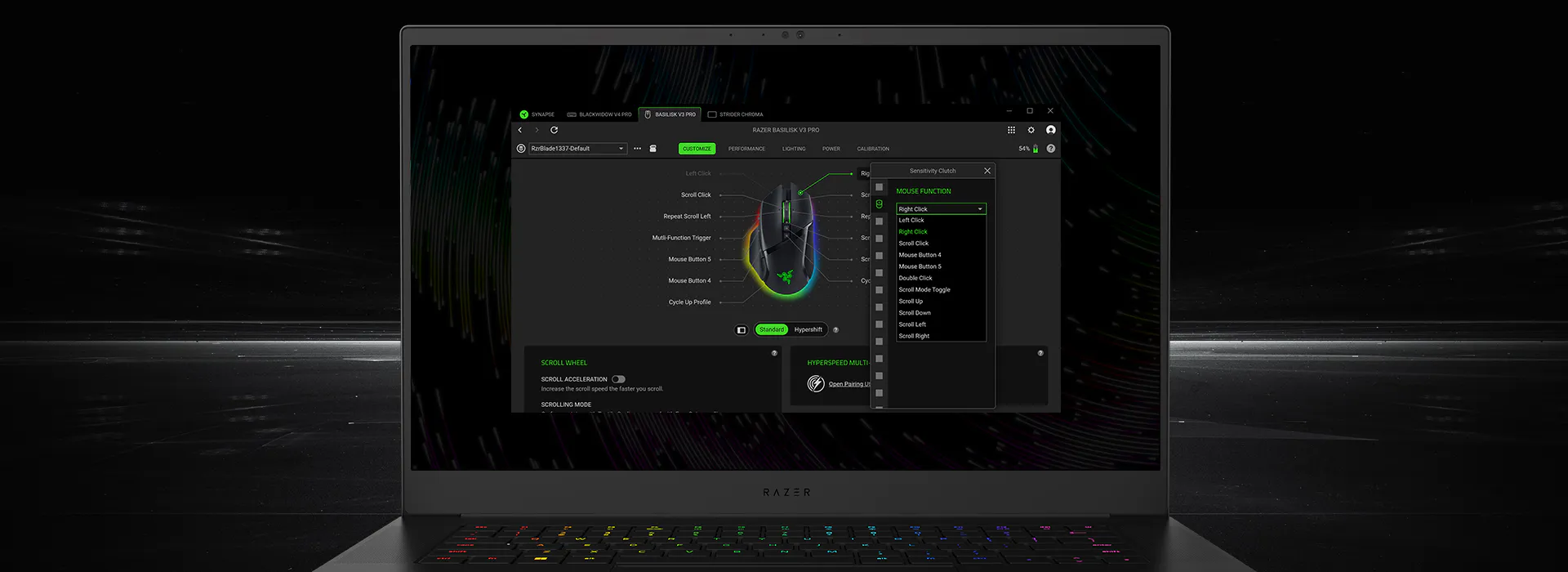
Razer's Chroma page is the authoritative place to understand the Chroma ecosystem, while the Razer Synapse 4 page documents the current desktop app and its device-control direction. These pages are useful even when they do not provide a single public folder of downloadable community profiles. They establish what the product is and which software branch you should be using.
Community galleries can fill the discovery gap for lighting effects. A gallery such as Razer Chroma Gallery is not a Razer-owned source, so label it as community content and review its download instructions independently. Prefer a simple effect file or documented import path. Avoid pages that hide the file type, use several forced redirects, bundle an installer, or promise that one download will unlock every device.
Before saving a community effect, record the page URL, author or publisher name when shown, file extension, supported device family, and the date you checked it. This small record helps you remove a bad effect later and prevents an old Synapse 3 package from being mistaken for a current Synapse 4 profile.
Start with Razer-owned context
Open the official Chroma or Synapse 4 page and confirm the current app branch and device family.
Inspect the community source
Read the file type, supported hardware, author information, and import instructions before downloading.
Reject bundled programs
A Chroma effect should not require an unknown EXE, script, extension, or disabled security setting.
Keep the source record
Save the URL, date, file name, and device notes so you can undo or review the import later.
Import workflow
How to Import a Chroma Profile in Synapse 4
The exact import control depends on the effect format, the connected device, and the Synapse 4 module that owns it. Open Synapse 4, connect one supported device directly, and first confirm that the device page loads normally. If the device is missing, solve detection before judging an effect file; an import cannot make unsupported hardware appear.
When Synapse presents an import or effect-selection control, review the destination device and any warning before confirming. Apply one effect at a time and test it with a simple color or brightness change. If the effect includes several layers, note which layer changed so you can remove or disable the correct item instead of resetting the whole profile.
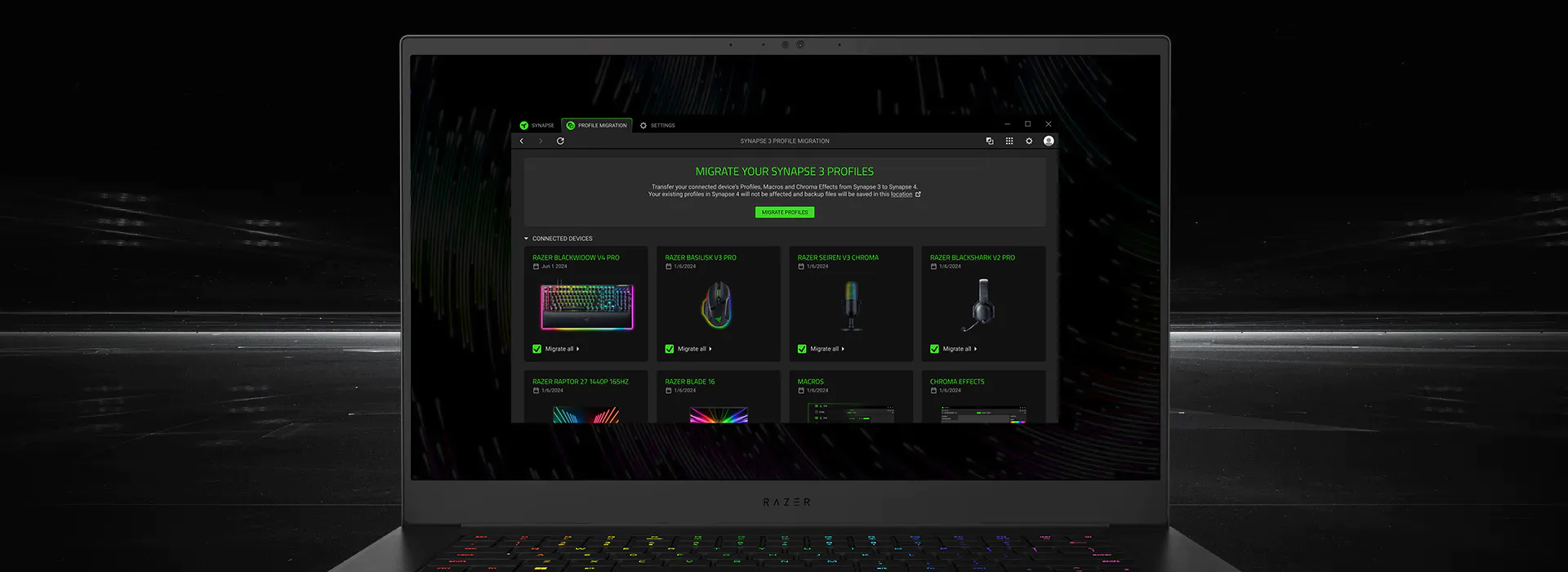
Do not confuse Synapse 3 Profile Migration with a public Chroma download. Razer's official Synapse 4 page describes Profile Migration as a way to move eligible Synapse 3 profiles, macros, and Chroma effects into Synapse 4. That is an application migration workflow, not permission to copy random configuration folders or install an old package.
Connect and identify the device
Use one supported Razer device and wait until its Synapse page exposes the expected controls.
Choose the correct destination
Select the Chroma-capable device or lighting module instead of applying an effect to an unrelated profile.
Import one item
Use the format and import control provided by the current Synapse workflow, then test a small change.
Undo or document the result
Keep the original profile, record the effect name, and remove only the item that caused a problem.
Download checklist
File Type, Source, and Version Checks Before You Open Anything
The phrase Razer Chroma profiles download does not guarantee that a result is a profile. Check the extension and the page behavior. A normal image or effect asset may be useful, but an EXE, MSI, BAT, PowerShell script, or driver package is a program, not a harmless lighting preset. Do not run it merely because the page calls it a profile.
Check the current branch before troubleshooting a failed import. Synapse 4 is the current official Windows direction that Razer exposes on its product and support pages. Synapse 3 has a separate legacy status and should not be installed from a third-party mirror just to load an effect. If a profile was made for an older branch, expect device or field differences and keep a working configuration available.
A download page may also be a catalog, not the final file. Follow only a clearly explained source, verify that the final domain matches the stated publisher, and do not enter account credentials into an unrelated redirect page. When no stable direct file is available, keep the official product or community page as the destination instead of guessing a CDN path.
Check
Pass condition
Stop condition
File type
Effect or profile format is explained
EXE, script, driver bundle, or unknown archive
Publisher
Razer-owned or clearly identified community author
Hidden publisher, forced mirror, or copied branding
Device support
Your device family and Synapse branch are listed
Claims to support every Razer device without detail
Import path
Steps stay inside the documented Synapse workflow
Asks you to disable protection or install a helper
Recovery
Working profile and source URL are recorded
No way to undo, remove, or identify the item later
Troubleshooting
Why a Chroma Profile Does Not Appear or Light Correctly
If an imported effect does not appear, check the selected device first. A profile made for a keyboard may not be available on a mouse, and a device may expose only the Chroma controls supported by its firmware and Synapse module. Reconnect the hardware directly, wait for the device page to load, and confirm that Synapse itself is not blank or stuck.
If the effect appears but colors or zones are wrong, reduce the test. Turn off other layers, apply a basic static color, and check whether the device is sharing a linked profile or game association. A game can activate a different profile immediately after launch, making a successful import look like it disappeared.
If Synapse cannot see the hardware at all, use the device-detection guide instead of downloading another Chroma package. If the application will not open or an installer failed, use the matching repair guide. Keeping detection, installation, profile settings, and lighting effects as separate problems makes the next action much clearer.
Latest official Windows builds
Current Razer Synapse 4 and Chroma versions checked October 24, 2026
Razer Insider's latest public Windows release note, dated October 21, 2026, lists Synapse 4.0.86.2610200951 and Chroma 4.0.63.2610020954. It also says full Synapse 4 support on Windows 10 ended October 14, 2026; through October 12, 2027, Windows 10 bug fixes are limited to security updates. We checked the product page and release note on October 24. The stable official EXE endpoint returned HTTP 200, application/x-msdownload, and 14,923,464 bytes. Its Last-Modified header remains September 8, 2026; we did not verify a checksum or a build number embedded in the file.
References
Razer and Community Sources Checked
These links support the Chroma ecosystem, Synapse 4 workflow, source checks, and the distinction between official and community material.
Razer Chroma
Official Chroma ecosystem overview and product context.
Razer Synapse & Chroma for Windows — October 21, 2026 release notes
Official release record: Synapse 4.0.86.2610200951, Chroma 4.0.63.2610020954, and a device-detection fix.
Razer Synapse 4 Support & FAQs
Official compatibility, configuration, macro, and troubleshooting sections.
Razer Chroma Gallery (community source)
A third-party gallery for discovery; not owned or endorsed by Razer, so inspect every file and instruction.
Razer Synapse & Chroma for Windows — October 21, 2026 release notes
Official release note: Synapse 4.0.86.2610200951 and Chroma 4.0.63.2610020954; Windows 10 is now limited to security updates.
Razer Synapse & Chroma for Windows — October 21, 2026 release notes
Razer CDN installer verified HTTP 200, application/x-msdownload, 14,923,464 bytes on October 24, 2026.
FAQ
Razer Chroma Profiles Download FAQ
What is a Razer Chroma profiles download?
It usually refers to a lighting effect or profile intended for compatible Razer Chroma hardware, but the label can also be used for a full Synapse device profile or an unsafe installer. Check the file type, destination device, and source before opening it.
Are Razer Chroma profile downloads from the community official?
No. A community gallery can be useful for discovery, but it is not the same as a Razer-owned source. Treat the file and its instructions as user-supplied, and reject any package that asks for an unknown EXE, script, or disabled security setting.
How do I import a Chroma profile in Synapse 4?
Connect one supported device, wait for its Synapse page to load, use the import or effect control exposed by the current module, choose the correct destination, and test one effect at a time. The exact control depends on the file format and device.
Why does my downloaded Razer Chroma profile not appear?
The device may be unsupported, the file may belong to another Synapse branch, a game-linked profile may be switching immediately, or Synapse may not be detecting the hardware. Check the device and app state before downloading again.
Is a Razer Chroma effect the same as a Synapse device profile?
No. A Chroma effect focuses on lighting layers, while a device profile can include buttons, keys, sensitivity, audio, macros, or application links. Onboard memory and migration data are separate boundaries as well.
What is the latest Razer Synapse version?
Razer's latest public Windows release note, dated October 21, 2026, lists Synapse 4.0.86.2610200951 and Chroma 4.0.63.2610020954. We verified it on October 24. The stable installer endpoint is versionless and its checksum was not verified.