
Select the real device
Choose the mouse or keyboard that will execute the action, then wait for its device controls to load.
Macro guide
The reliable Razer Synapse macro workflow is short: choose a supported device, record a small action, assign it to a key or button, and test it in a harmless app before using it in a game.
This guide covers Synapse 4 first and calls out Synapse 3 differences where they matter. It explains device support, delays, repeat modes, profile links, and safe boundaries; it does not distribute scripts, anti-recoil files, or unknown macro downloads.
Quick answer
A Razer Synapse macro is a recorded or manually assembled sequence of keyboard and mouse actions. Synapse can assign that sequence to a supported key or button, then run it when you press the assigned control. The exact editor, repeat options, and available actions depend on the device and the Synapse branch, so a menu shown for one mouse may not appear for another.
Start with a reversible task such as opening a common application, entering a short text string, or sending a two-key shortcut. Name the macro by its job, keep the sequence short, and test it outside a competitive game. A macro that behaves correctly in a text editor is easier to diagnose than one that is mixed with game overlays, anti-cheat software, wireless sleep, or a changing profile.
Macros, profiles, Chroma effects, and onboard memory are related but different. A profile selects device settings, a macro stores actions, a Chroma effect controls lighting, and onboard memory stores only the settings a particular device can carry. Exporting one does not prove that the other three were backed up.
Step by step
Open Synapse 4 from the official installation and sign-in path, then select the mouse or keyboard that should run the macro. Do not begin in a generic profile if you need the action only for one game or application. Create or select a clearly named profile first, because an otherwise correct macro can appear to be missing when another profile becomes active.
Open the Macro module, create a new entry, and use a descriptive name such as Paste with formatting or Push to talk. Record only the actions you need. If the editor lets you choose delays, keep the recorded timing for the first test; removing every delay can make a sequence unreliable or trigger application rate limits. Edit timing only after you know which step is failing.
Save the macro, return to the selected device, and choose the key or mouse button assignment control. Select the macro action, choose the new entry, and save the device profile. If the control is unavailable, confirm that the device supports macros in the current branch and that Synapse has finished loading its device module.
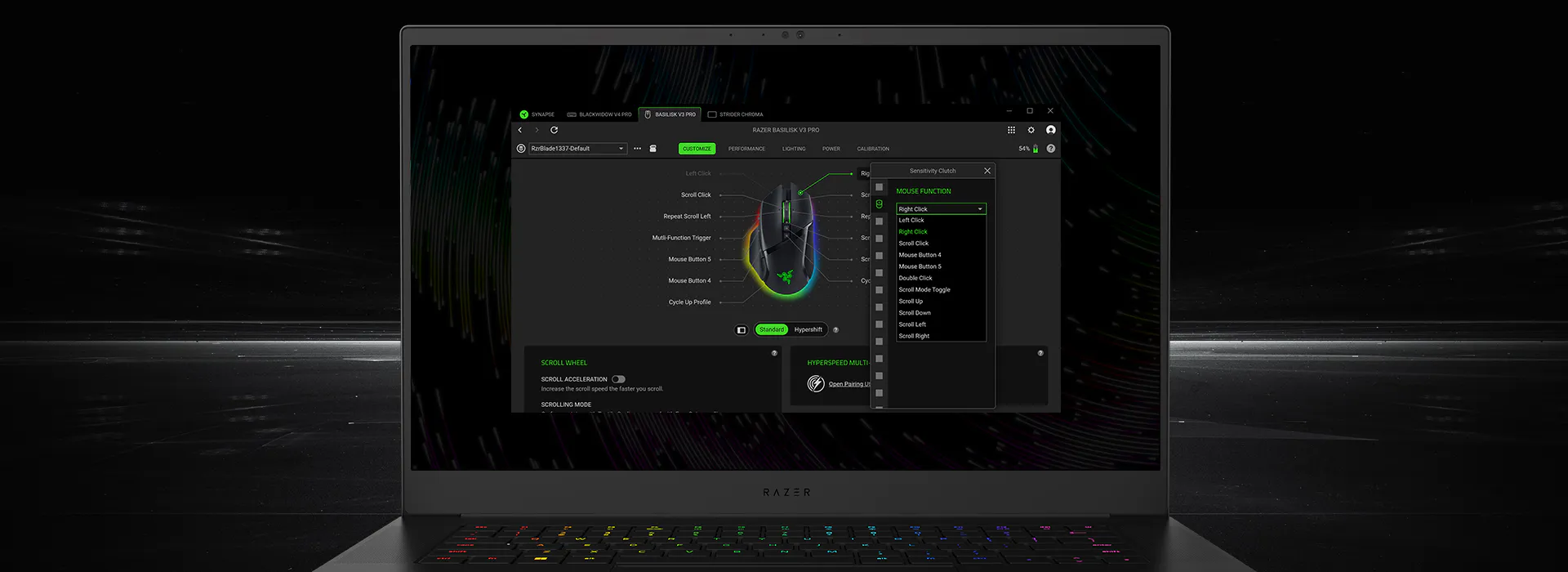
Choose the mouse or keyboard that will execute the action, then wait for its device controls to load.
Create a named profile for the task so the macro does not disappear when another profile is linked.
Record a short, reversible sequence and keep the first timing values for a baseline test.
Open the device customization view, select a supported key or button, and choose the macro entry.
Apply the assignment, keep the profile name descriptive, and note which executable should activate it.
Run the action in a text editor or key tester before adding more steps, loops, or application links.
Binding and timing
Test the macro in three layers. First, confirm that the assigned key or button produces the expected input in a plain text editor. Second, test the same profile in the target application with a safe action. Third, test automatic profile switching by launching the real executable, not only a store or launcher shortcut. This sequence separates a recording problem from a profile-link problem.
Repeat settings need the same discipline. A single-run macro is the safest baseline. Use a hold, toggle, or repeat-until-stopped mode only when the application and the device support it and you understand how to stop it. Put a clear stop control on a nearby key, and avoid leaving a loop active while switching windows or disconnecting a wireless device.
If a macro works manually but not when a game starts, inspect the active profile, linked executable, permissions, and device connection. A launcher can hand off to a different game executable, a Windows update can restart Razer services, and a wireless device can wake into a different profile. Fix the smallest layer that changed instead of recreating every macro.
Troubleshooting
When a Razer Synapse macro does nothing, confirm the active profile before changing the recording. The device page should show the same profile that contains the macro, and the assigned key should still display the macro action. If Synapse has switched profiles, reconnecting the device or reopening the application can reveal a profile-link issue rather than a broken macro.
If only one step is wrong, edit that step and test again with a single run. Recorded delays can be too short for a busy application, while long delays can look like a frozen input. Keep a short written note of the intended sequence so you can compare the editor with the result. Do not replace a failing macro with an unknown XML, EXE, or script bundle from a download mirror.
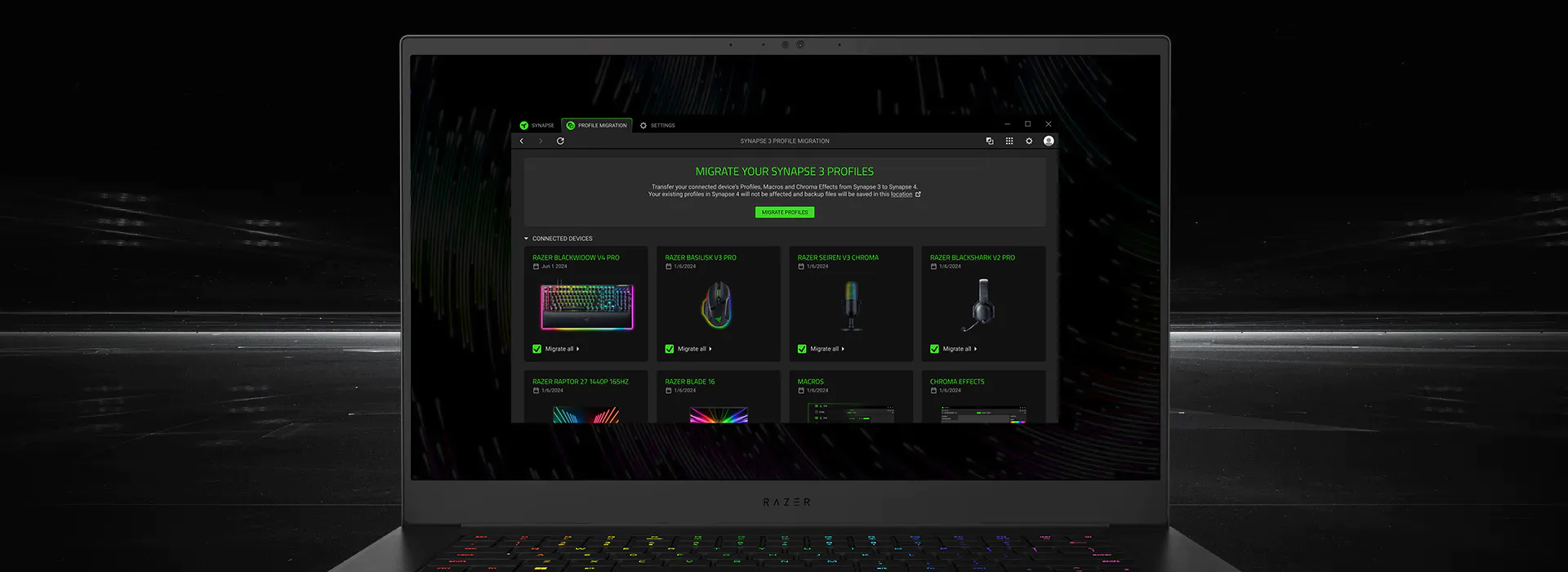
If the editor or device module is missing, use the existing install, update, device-detection, or app-engine guidance on this site. Synapse 3 and Synapse 4 have different menus and migration boundaries; trying to repair a current Synapse 4 profile with legacy folders can create a second problem.
Safe boundaries
A search for a Razer Synapse macro often mixes ordinary productivity shortcuts with game automation, anti-recoil files, and scripts that promise an advantage. Those are different risk levels. This page explains how to use the editor for a known, transparent action; it does not host or recommend anti-recoil, aim-tracking, jitter, recoil, or rapid-fire scripts. Game rules and anti-cheat policies can change, so check the rules for the specific title and account before assigning any automation.
Treat a downloaded macro pack as untrusted input. A file that asks you to run an EXE, disable Windows security, paste a command into PowerShell, or import a password-protected archive is not a normal Synapse profile workflow. Keep the official Razer product and support pages as the source for the application, and use a manual record or a supported export for your own settings.
Razer's public product page describes Synapse 4 as the current branch. The official Windows release record checked for this guide lists Synapse 4.0.86.2609221012 and Chroma 4.0.63.2609150212. The stable CDN installer was reachable on October 14, 2026 and returned 14,923,464 bytes. No newer public version was found in the sources checked, and the download button on this page therefore points to the official product page rather than inventing a different file URL.
Official references
These first-party pages support the current branch, macro capability context, migration boundaries, and official download fallback used in this guide.
FAQ
Select the supported mouse or keyboard, choose a named profile, create a short macro in the Macro module, assign it to a key or button, save the profile, and test it in a text editor before using the target application.
Run the macro by pressing the key or button to which it is assigned while the correct device profile is active. If it is linked to an application, verify the real executable and test manual activation first.
Use a hold, toggle, or repeat mode only when the device and application support it. Test a single run first, add a clear stop control, and return to single-run mode if the loop does not stop predictably.
Check the active device profile, macro assignment, device support, application permissions, linked executable, and connection state. Keep the sequence short and test one event or delay at a time.
This guide does not recommend unknown XML, EXE, script, anti-recoil, aim-tracking, or rapid-fire packs. They can be unsafe, violate a game's rules, or behave differently from a supported Synapse editor action.
No. Synapse 3 and Synapse 4 have different menus, supported devices, and migration boundaries. Use the current Synapse 4 workflow for new setups and read the version comparison before moving a legacy macro library.