
Settings and backup guide
Where Are Razer Synapse 4 Settings Stored? Backup Safely
Razer Synapse 4 does not expose one universal settings folder that is safe to copy or delete. The practical answer depends on whether you mean device profiles, Razer ID cloud sync, migration data, or temporary application files.
Razer's current support material documents profile sync and migration inside Synapse, but it does not publish a single supported local path for every setting. Use the in-app recovery route before touching AppData or deleting Razer folders.
Direct answer
Where Does Razer Synapse 4 Store Settings?
There is no single Razer-published folder that contains every Razer Synapse 4 setting. A device profile, a Chroma effect, a macro, a linked-game rule, a Razer ID sync record, and a temporary cache can follow different storage and recovery rules. That is why a random AppData path copied from a forum is not a reliable universal backup method.
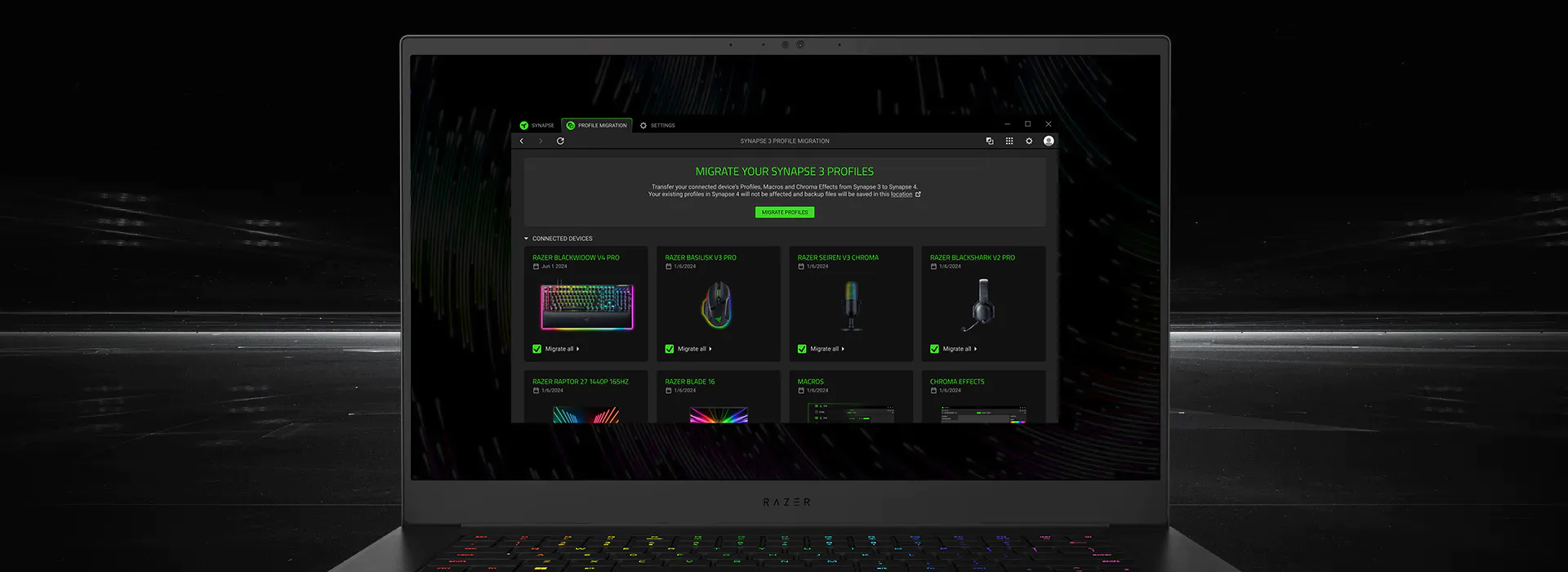
For a setting that must survive a move to another PC, start in Synapse 4 rather than Windows Explorer. Razer's support page documents profile cloud sync through Settings > Last Sync and the use of the same Razer ID on another PC. For eligible Synapse 3 data, use the Profile Migration tool instead of manually copying an old configuration folder.
The safest short answer is therefore: settings are partly managed by the Synapse application and partly associated with supported profile or account workflows. Razer does not give this guide a stable, version-independent local folder to publish as a guaranteed path. If you need to repair the app, use the official repair or reinstall sequence and treat local folders as application-owned data.
Data you mean
What the official workflow supports
Best action
Device profile
Profile controls, game links, and supported settings
Use the profile and sync controls in Synapse
Cloud-linked profile
Razer ID and Settings > Last Sync
Sign in with the same Razer ID and refresh sync
Synapse 3 data
Supported migration into Synapse 4
Use Profile Migration, not a guessed folder copy
Cache or repair files
Application-owned Windows data
Do not delete it unless official troubleshooting says to
Data layers
The Difference Between Profiles, Cloud Sync, and Local Files
A profile is the user-facing unit you can select, bind to an application, or associate with a Razer device. It may include button assignments, sensitivity stages, lighting choices, macros, or other fields supported by that device and module. The exact fields depend on the hardware, firmware, Synapse branch, and feature being used.
Cloud sync is a separate recovery path. Razer's Synapse 4 support instructions say to open Settings, use Last Sync, and sign in to the same Razer ID on another PC. That is stronger evidence for a supported transfer workflow than a forum post naming a local directory. It also explains why a profile can appear on one machine but not immediately on another: the account, sync state, device, and app branch all have to line up.
Local application data still exists, but its presence does not mean it is a supported export format. A cache can be rebuilt, a module can own its own files, and a local database can change with an update. Copying or deleting files without knowing which layer they belong to can remove recovery clues or create a broken install.
Safe transfer
How to Back Up or Move Razer Synapse 4 Settings
Use the smallest supported workflow that solves the problem. If you are moving a current Synapse 4 profile, sign in to the same Razer ID, open the sync controls, and confirm that Last Sync has a recent time. If you are moving eligible Synapse 3 data, use Profile Migration and select only the profiles, macros, or Chroma effects you actually want to carry forward.
Before changing versions or reinstalling, write down the device name, profile name, linked game, DPI stages, important macro behavior, and any onboard-memory settings. This is a recovery record, not a claim that every setting can be exported. It helps you distinguish missing cloud data from a device that simply does not support the same field after migration.
After the transfer, test one device at a time. Open the device page, select the intended profile, change one harmless setting, and confirm that it remains after a restart. Do not run Synapse 3 and Synapse 4 concurrently as a test; Razer warns that conflicting configuration can make the result harder to diagnose.
Identify the branch
Confirm whether the source is Synapse 4 or legacy Synapse 3 before you try to move any data.
Sync supported profiles
Use the same Razer ID, open Settings > Last Sync, and wait for the sync state to refresh.
Use Profile Migration
For eligible Synapse 3 data, use the migration tool and choose the profiles, macros, or effects you need.
Test one device
Open a device page, select the profile, test one safe setting, and restart before changing more.
Troubleshooting
What to Check When Razer Synapse Settings Do Not Save
If a mouse or keyboard setting disappears, first confirm that you edited the intended profile and device. A profile linked to one game may switch as soon as another application starts. A setting that works in the app but disappears after unplugging may also be a software-only field rather than an onboard-memory field.
Next, check the account and sync state. Use the same Razer ID, refresh Last Sync, and allow Synapse to finish loading before you change the profile again. If the app is blank, stuck, or cannot see the device, use the device-detection or App Engine guides instead of deleting a folder. The symptom may be startup or hardware detection, not storage.
Only use a clean repair or reinstall after the supported checks fail. Close Razer programs, record your current profile names, use the official Razer source, and test the new installation before restoring more settings. Avoid registry cleaners, unknown repair utilities, and instructions that ask you to disable Windows security.
Symptom
Likely boundary to check
First safe action
A profile is missing
Account, selected device, or profile branch
Sign in, refresh sync, and check the selected device
A setting resets after unplugging
Software profile versus onboard memory
Confirm whether the device supports that onboard field
Synapse is blank or stuck
App Engine, network, or startup state
Restart Windows and follow the repair guide
Migration is incomplete
Synapse 3 eligibility or selected data
Run supported Profile Migration and select items again
Version boundary
Synapse 3 Settings Are Not the Same as Synapse 4 Settings
Synapse 3 is now a legacy-status path. Razer's Synapse 4 support page says that after February 3, 2026, Synapse 3 no longer receives updates or cloud services, although installed devices may continue to be configurable until the user removes them. That makes old settings especially risky to treat as a simple folder archive.
If a legacy profile matters, use Razer's supported migration route where available and keep a written record of what moved successfully. A Synapse 3 folder copied into a new Synapse 4 installation can contain fields or formats the newer app does not interpret. A successful file copy is not proof that the profile is usable.
For a fresh Windows installation, Synapse 4 is the current official direction checked on August 8, 2026. Keep the version comparison and legacy download pages separate from this settings-location guide so a storage question does not accidentally send a user to an unsupported mirror.
Situation
Use
Avoid
New Windows 10/11 setup
Synapse 4 official source and supported sync
Starting with a legacy mirror
Existing Synapse 3 profile
Profile Migration when the data is eligible
Blindly copying a configuration folder
Missing device after transfer
Device detection and compatibility checks
Assuming the storage path is the cause
Verified sources
Current Synapse 4 Source and Version Facts
This is a software-download site, so source freshness was checked before adding the settings guide. On September 23, 2026, the official Razer Synapse 4 product page and Synapse 4 support page returned HTTP 200. The stable Windows installer route also returned HTTP 200 with application/x-msdownload and a 14,923,464-byte file.
The installer response reported Last-Modified: May 25, 2026. Razer's public pages did not expose a reliable semantic build number or checksum in the material checked today, so this page does not invent a latest version string. The verified branch is Synapse 4 for Windows 10 64-bit and Windows 11, and the official source links remain the safer download fallback.
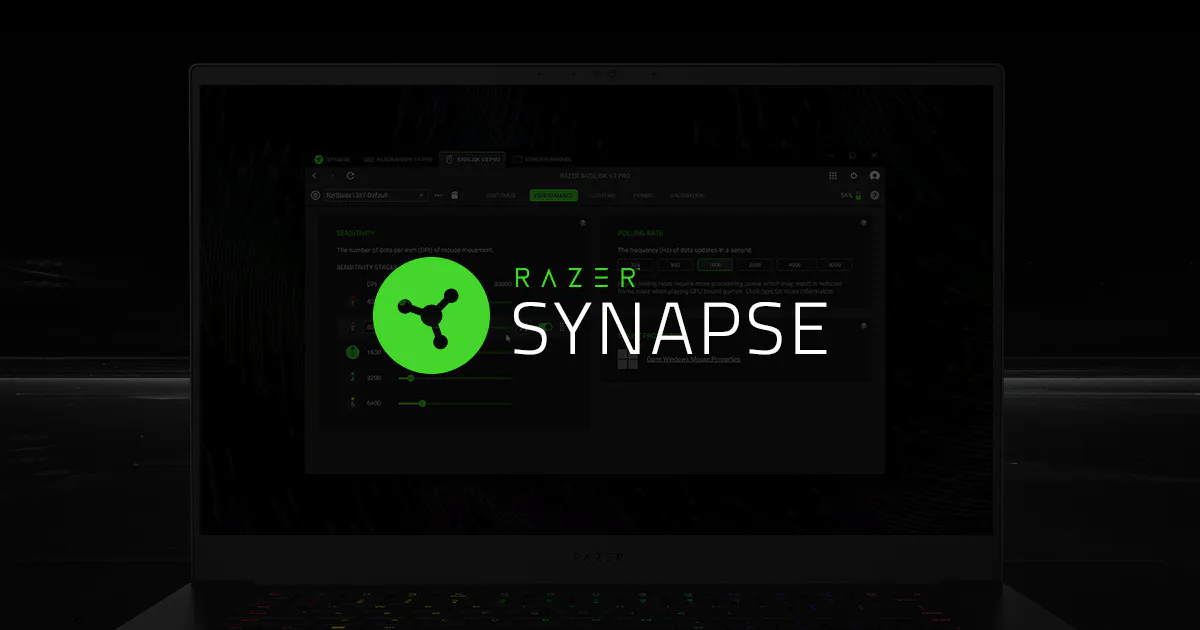
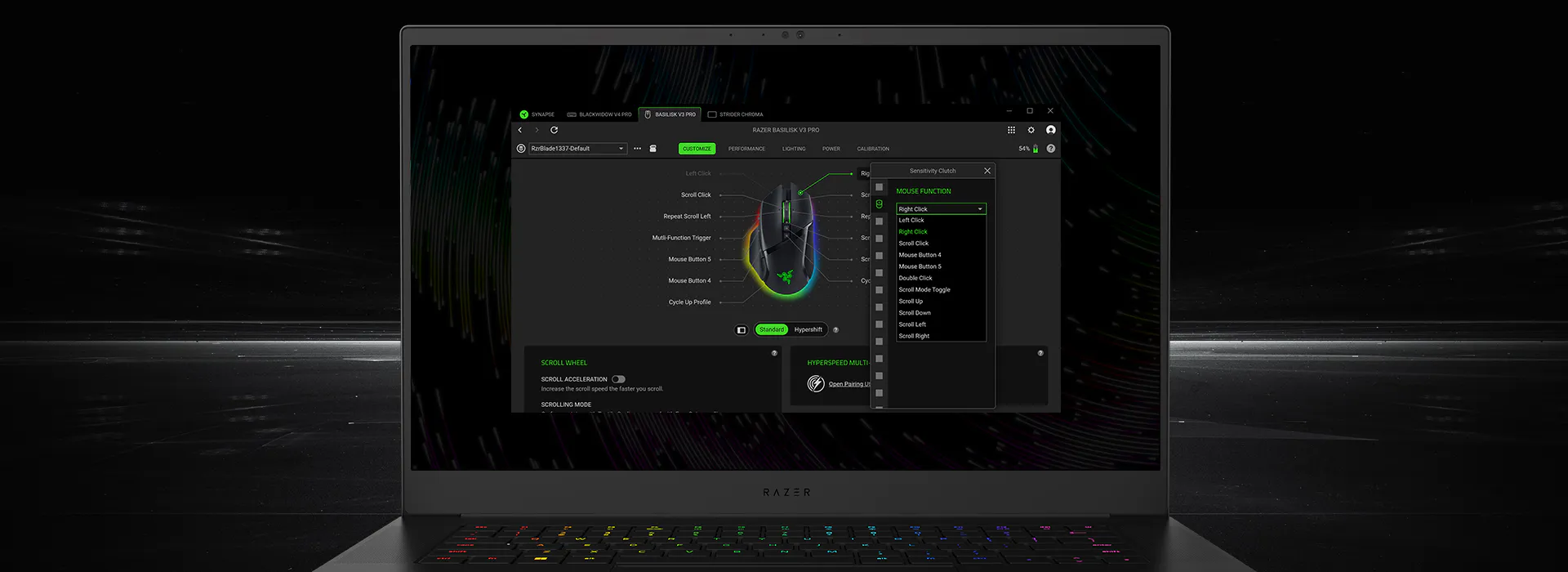
The visual points on this page are existing Razer product and configuration visuals already stored by this site as compressed WebP assets. They illustrate the settings, profile, and migration workflows; they are not presented as a live capture of a user's files or as proof of a particular local folder.
Official references
Razer Sources Checked
These Razer-owned pages support the sync, migration, version, and official-source statements in this guide.
Razer Synapse 4 Support & FAQs
Supported Windows versions, profile sync, migration, and configuration guidance.
Razer Synapse 4 product page
Current app branch, Windows download route, device settings, and Profile Migration context.
How to check for updates in Razer Synapse
Official update checks and the boundary between an app update and a reinstall.
FAQ
Razer Synapse 4 Settings Location FAQ
Where are Razer Synapse 4 settings stored?
Razer Synapse 4 settings are split across application-managed local data and supported profile or Razer ID sync workflows. Razer does not publish one universal local folder that is safe to copy for every setting, so use Settings > Last Sync or Profile Migration before touching AppData.
Can I copy Razer Synapse 4 settings to another PC?
Use the same Razer ID and the Synapse 4 sync workflow for supported profile data. For eligible Synapse 3 profiles, use Profile Migration. A manual folder copy may omit device-specific fields or bring across incompatible data.
Are Razer Synapse profiles stored in the cloud?
Supported profile data can be synced through Razer ID. Razer's support instructions use Settings > Last Sync and the same account on another PC. That does not mean every macro, Chroma effect, cache, or device field is a portable cloud backup.
Should I delete AppData to reset Razer Synapse 4?
Do not delete an AppData or Razer folder just because a forum lists it. Record profiles first and follow the official repair or reinstall sequence. Deleting application-owned data can remove recovery clues without fixing a device, account, or startup problem.
What happened to Synapse 3 settings after February 3, 2026?
Razer says Synapse 3 stopped receiving updates and cloud services after February 3, 2026, while installed devices may remain configurable. Use supported Profile Migration when moving eligible data to Synapse 4 instead of relying on an old folder path.