
Name the purpose
Use a clear profile name such as Game - mouse baseline so you know which controls are active.
Gaming settings guide
Looking for Razer Synapse best gaming settings? Use a stable baseline you can test, name, and reproduce. Start with the sensor and Windows input path, then tune sensitivity, polling rate, controls, and game profiles one layer at a time.
This guide covers Razer Synapse DPI settings, polling rate, Hypershift, macros, onboard memory, Chroma separation, and profile switching. It gives practical starting points rather than pretending one preset works for every mouse, game, surface, or PC.
Quick answer
For a dependable starting point, use a consistent Windows pointer path, disable acceleration if your game setup depends on raw and repeatable mouse movement, choose a DPI you can control comfortably, and keep one in-game sensitivity as your reference. Many players begin around 800 to 1600 DPI, but the useful setting is the one that gives you enough physical desk travel without forcing tiny corrections. DPI is not a performance score; consistency matters more than a large number.
Set the mouse polling rate to 1000 Hz when the device, game, and PC handle it reliably. Higher rates can reduce the interval between reports, but they can also increase CPU or frame-time pressure on some systems and do not automatically improve aim. If a high polling rate causes stutter, unstable cursor movement, or a game-specific problem, return to the stable value and test again at the same frame rate.
Use Razer Synapse profiles for repeatable per-game bindings, not as a reason to change five variables at once. Make one profile for a game, bind it to the correct executable when supported, save a neutral backup, and test the profile after relaunching the game. Keep audio presets, lighting effects, and competitive mouse controls separate so a missing Chroma effect does not look like a sensor or profile failure.
Mouse performance
DPI describes how much cursor movement the sensor reports for a given physical distance. In a game, that value works together with in-game sensitivity and the game's input path. Changing DPI and game sensitivity at the same time makes it difficult to know which change helped. Pick a comfortable DPI, record it in the profile name or notes, and adjust only the in-game sensitivity until your turn distance feels repeatable.
Polling rate is a reporting interval, not a replacement for a good sensor or a high frame rate. A stable 1000 Hz setting is a sensible baseline for many Windows gaming setups. Try 2000, 4000, or 8000 Hz only when the mouse supports it and you can compare frame-time behavior in the games you actually play. If the cursor becomes inconsistent or a game feels less smooth, the lower stable value is the better setting.
The table below is a testing map, not a promise that a genre has one correct value. Check the mouse surface, grip, display refresh rate, game engine, and your available desk space. Competitive results should be judged by repeatable movement and clear tracking, not by a specification number alone.
Controls
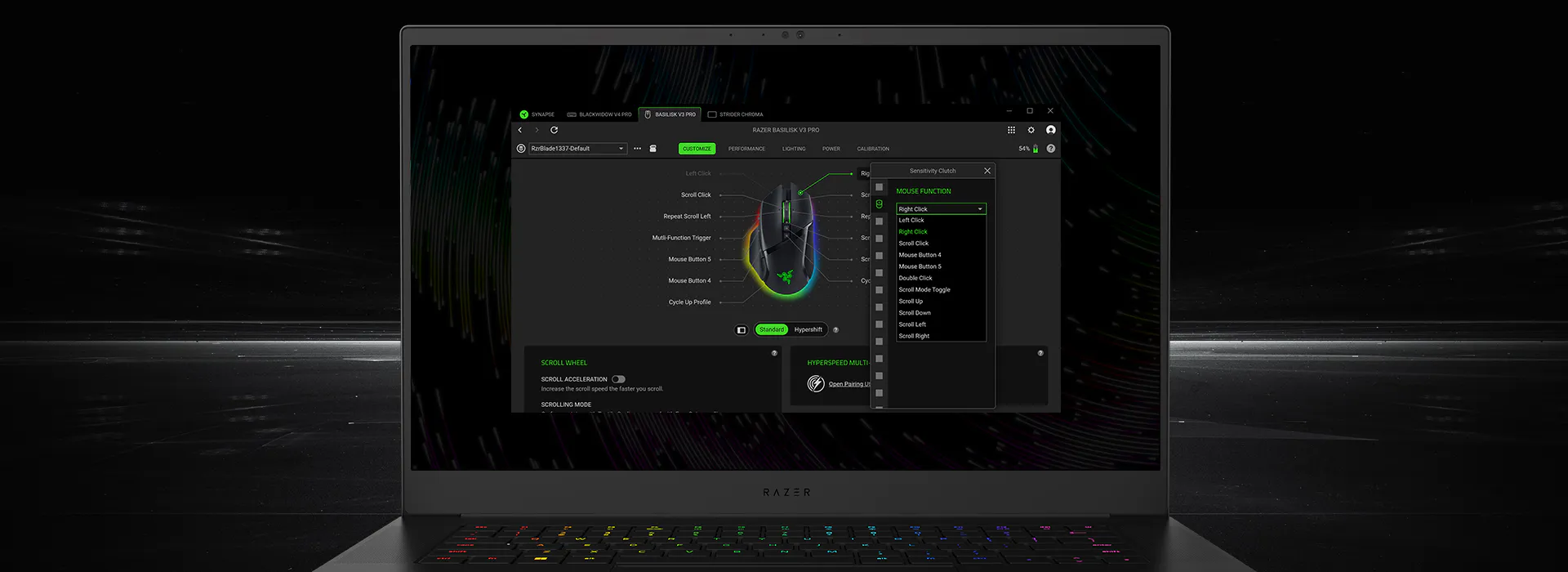
Hypershift can provide a second layer of bindings, but a second layer is only useful when you can remember which modifier is active. Keep the primary buttons predictable: movement-adjacent actions, push-to-talk, reload, or other controls that you can reach without changing grip. Put lower-frequency functions on the Hypershift layer and label the profile so another game does not inherit the same modifier by accident.
Macros deserve extra care in competitive games. A macro may be unsupported by a game's rules or may create a timing pattern you did not intend. Prefer a simple one-button remap when the game allows it, avoid automated sequences in competitive contexts, and verify the game's policy before using anything beyond a direct input. Synapse can store a binding; it cannot make a prohibited action acceptable.
Keep a clean fallback profile with no macros, unusual remaps, or lighting dependencies. If a game stops recognizing a button, switch to the fallback before reinstalling Synapse. This isolates whether the problem is a profile conflict, the game input layer, a device connection, or a missing device module.
Use a clear profile name such as Game - mouse baseline so you know which controls are active.
Reserve the main layer for actions you need without a modifier or a timing sequence.
Assign a small second layer and test the modifier while the game is running.
Check the game's input and anti-cheat policy before using macros or automated sequences.
Game profiles
A good Razer Synapse gaming profile answers three questions: which game is it for, which device settings does it change, and how can you return to a known baseline? Start by creating the profile with a descriptive name, then set DPI, polling rate, bindings, and lighting only after the profile is active. If you configure the wrong profile, every later test becomes misleading.
When Synapse offers an application or executable link, point the profile at the game's real executable rather than a launcher shortcut that closes immediately. Some games use a launcher, a separate anti-cheat process, or multiple executables; profile switching may therefore need a manual check. Launch the game, alt-tab back to Synapse if necessary, and confirm the active profile before judging the setting.
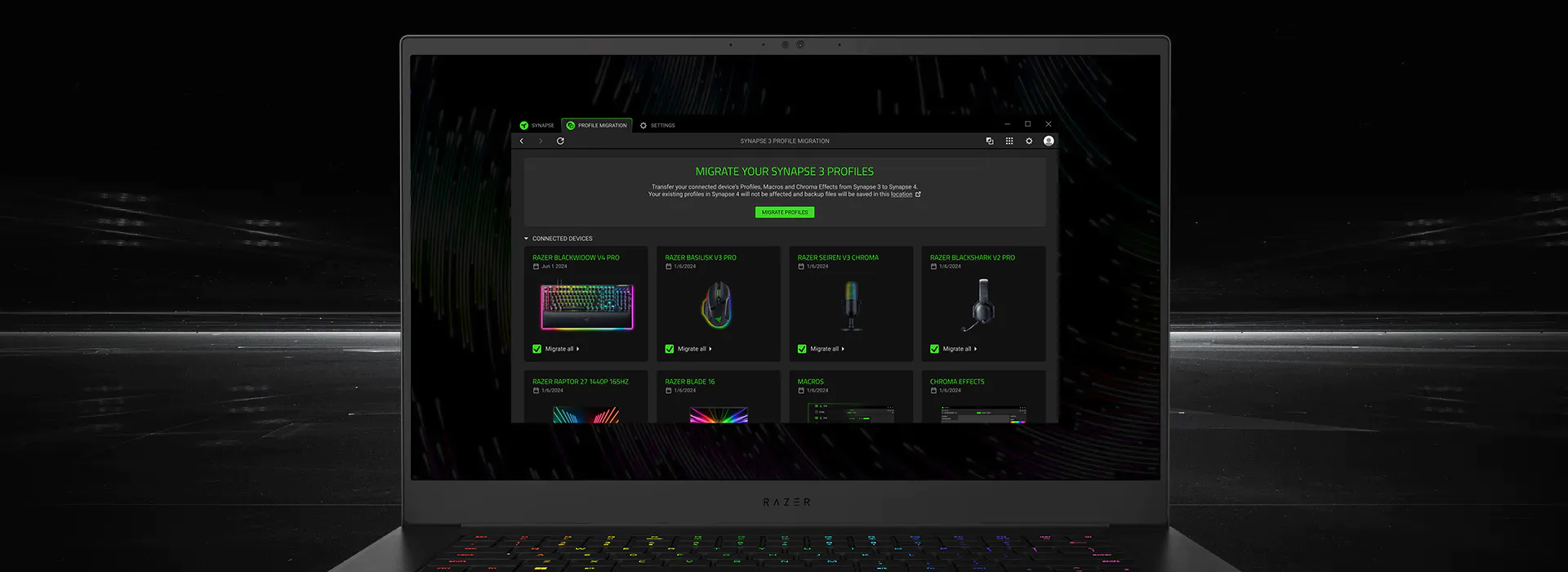
Profile migration is not the same as a complete backup of every device state. Keep a written record or screenshots of important DPI, polling, bindings, and sensitivity values. If you move from Synapse 3 to Synapse 4, treat the migrated profile as a starting point and retest the game rather than assuming every module, device, or macro behaves identically.
Keep layers separate
Lighting effects are useful for desk feedback, but a Chroma effect is not a mouse-performance profile. If a lighting import fails, it should not lead you to change DPI or reinstall the device driver. Test the visual effect separately, and keep the mouse controls in a profile that still works with lighting disabled.
Audio settings have a similar boundary. A headset EQ or microphone preset belongs to the audio device and game-chat path, while mouse polling and button mappings belong to the input path. If a game feels delayed, first compare frame rate, display settings, input latency, and the active mouse profile rather than stacking audio enhancements.
This separation also improves troubleshooting. Change one layer, test one repeatable scenario, and write down the result. A profile that changes DPI, lighting, EQ, macros, and game sensitivity together may look convenient, but it makes a single failure hard to locate.
Troubleshooting
If a setting appears to save but the game does not change, confirm the active profile first. Then check that the intended Razer device is connected, the game is using the expected executable, and the Windows input path has not changed. A profile switch that happens after the game starts can also make a correct configuration look broken.
If the device page is missing, blank, or stuck loading, stop changing settings and repair device detection first. Reconnecting the device, checking the official support path, and testing the neutral profile are safer first steps than downloading a random profile pack or an unofficial Synapse installer. Use the official install or update route only when the evidence points to an application problem.
If a higher polling rate causes stutter, revert to the last stable value and compare frame time in the affected game. If only one game is affected, its input or anti-cheat behavior is more likely than a universal mouse failure. Record the old setting before each test so you can undo the change without guessing.
Check the profile name and device page while the game is open, then test one button or DPI change.
Remove macros, extra effects, and unusual polling values to isolate the input path.
Return to the previous stable value before testing another DPI, rate, or binding.
Use the device-detection or install guide when the hardware page is missing; do not force a profile fix.
Verified source facts
Because this is a software-download guide, the source was checked again before adding this gaming-settings page. On September 22, 2026, the official Razer Synapse 4 product page, support material, install or upgrade article, and the stable Windows installer endpoint returned HTTP 200.
The verified Windows file remains RazerSynapseInstaller.exe at dl.razerzone.com. A HEAD check returned HTTP 200, MIME type application/x-msdownload, 14,923,464 bytes, and Last-Modified Tue, 08 Sep 2026 05:47:37 GMT. Razer did not expose a dependable public semantic build number in the checked material, so this page records verifiable file facts instead of inventing a latest version.
The installer CTA points to that stable official file URL. It is a source link, not a claim that this site hosts the installer or performs a security scan. If Razer changes the endpoint, file size, or public support guidance, recheck the official source before treating these facts as current.
References
These first-party pages support the Synapse branch, supported devices, installation boundary, and profile-migration cautions used in this guide.
FAQ
Start with a consistent Windows input path, a comfortable DPI such as 800-1600, a stable 1000 Hz polling rate, one known in-game sensitivity, and a simple per-game profile. Treat these as testing points, not universal values.
Many players start around 800-1600 DPI because it provides a workable balance of physical travel and fine control. Your mouse, surface, display, grip, and in-game sensitivity matter more than copying someone else's number.
Not automatically. Use a higher rate only when the mouse, game, and PC remain stable and frame-time behavior is unchanged. If it causes stutter or inconsistency, use the last stable polling rate.
Create a named profile, link it to the game's actual executable when Synapse supports that option, launch the game, and confirm the active profile. Launchers and anti-cheat processes can make automatic switching less predictable.
Hypershift can provide a second layer of direct bindings, but macros may be restricted by a game's rules. Keep bindings simple and check the game's policy before using automated sequences.
Onboard memory can preserve some device settings, but the exact controls depend on the device. Treat it as a fallback for core settings and keep a written record of in-game sensitivity and profile behavior.
The public Razer material checked on September 22, 2026 did not expose a dependable semantic build number. This guide records the official file URL, MIME type, size, and Last-Modified header instead of inventing a latest version.