
Audio settings guide
Best Razer Synapse Audio Settings: EQ, Mic & Headset Guide
The best Razer Synapse audio settings are a clean starting point, not one magic preset. Set Windows and game volume first, use a small EQ adjustment, then tune microphone gain while listening to a real recording.
This guide covers Razer Synapse equalizer settings, BlackShark microphone setup, game profiles, and the limits of what Synapse can change. It uses the current official Synapse 4 path and does not promise a universal EQ for every headset or room.
Quick answer
What Are the Best Razer Synapse Audio Settings?
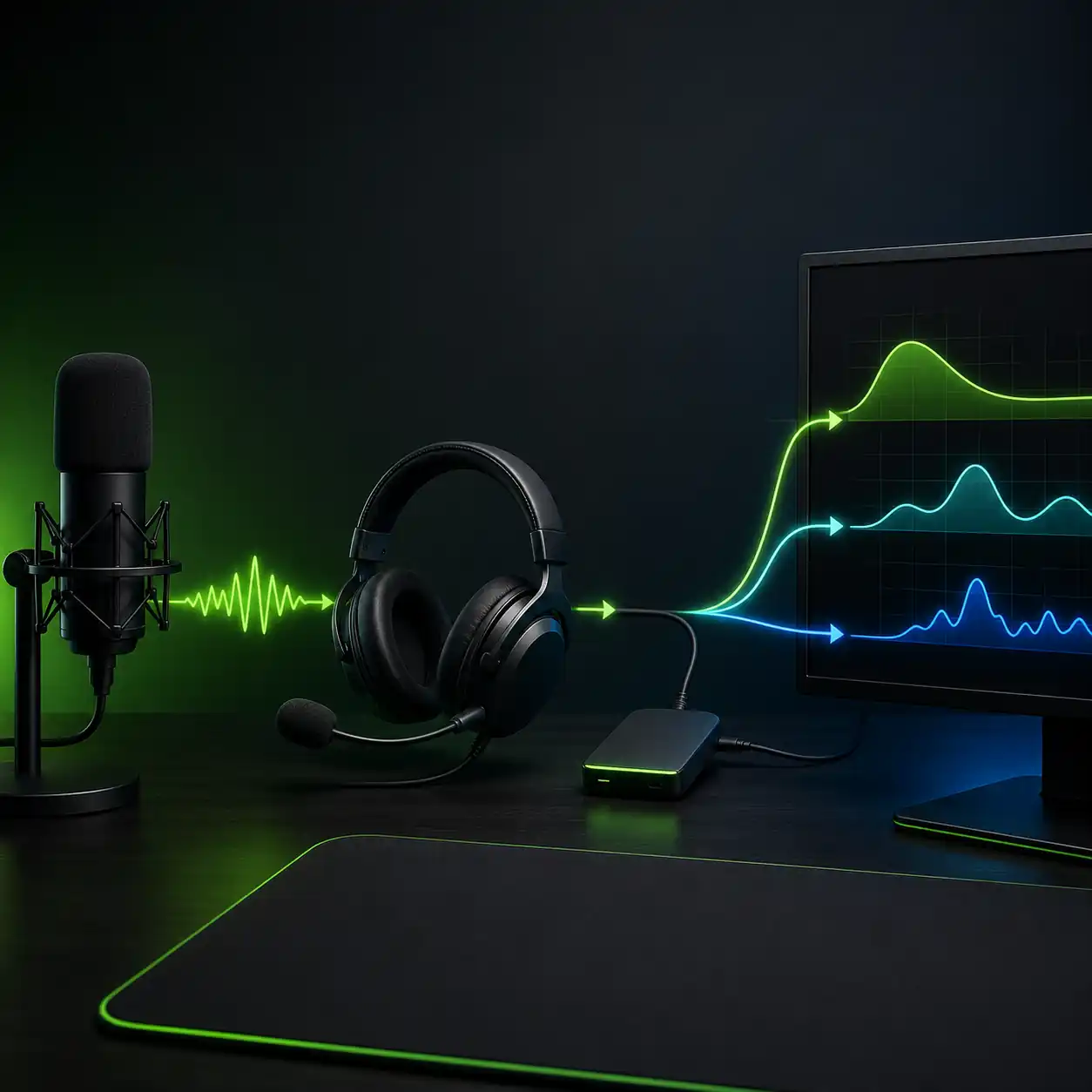
For most users, begin with the headset's neutral or flat profile, leave Windows volume high enough to avoid a noisy low-level signal, and keep the game volume near its normal reference level. In Razer Synapse, make only a small change to the equalizer: reduce a muddy band before adding a large bass boost. This gives you a repeatable baseline for music, games, and voice chat instead of a preset that only sounds impressive for thirty seconds.
A practical starting point is to keep overall gain below the clipping point, use a modest low-frequency lift only when the headset sounds thin, and reduce harsh upper mids if footsteps or voice become tiring. These are starting decisions, not measured claims about every Razer headset. Ear shape, seal, wireless mode, game mix, and room noise all change the result, so compare at the same volume and write down the change you made.
The same rule applies to Razer Synapse microphone settings. Put the microphone at a consistent distance, set input gain so normal speech is clear without redlining, then test Discord or the game's own input meter. If the voice is quiet, raising gain may help; if it is noisy, moving the mic closer and lowering gain is often cleaner than adding more software processing.
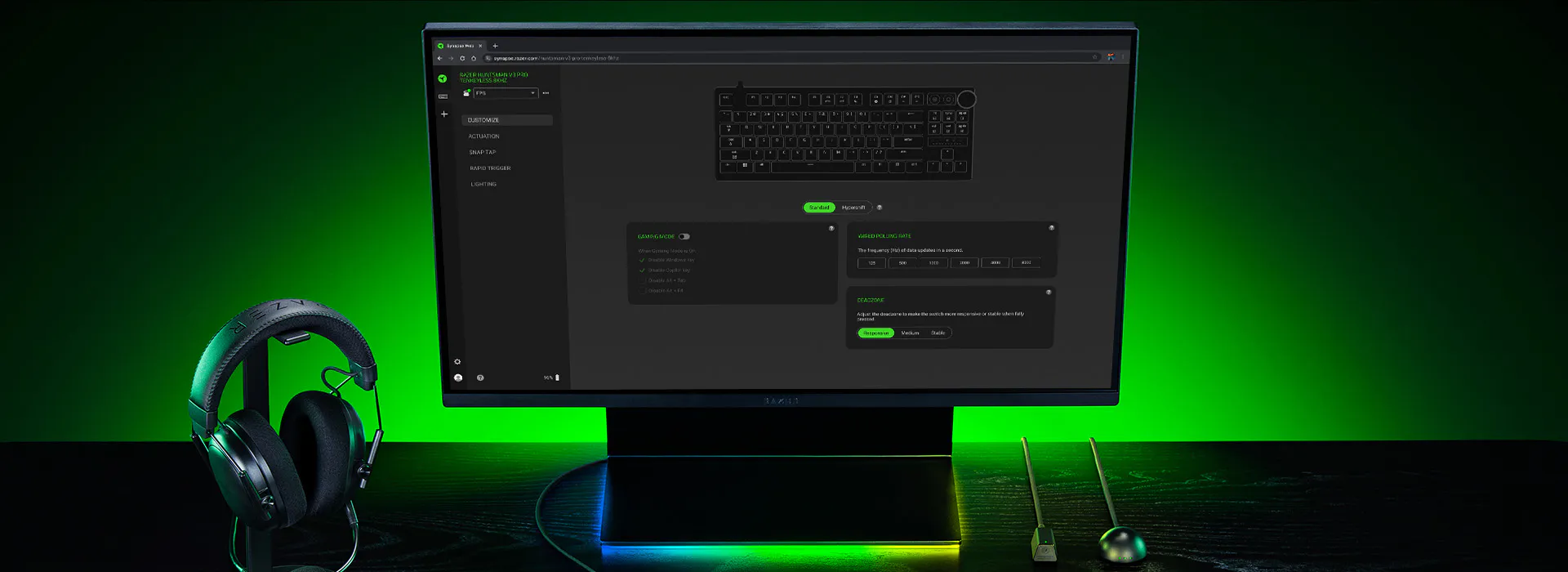
Signal path
Separate Windows, Synapse, and Game Audio First
Many bad-sounding Razer Synapse audio setups are not caused by the EQ itself. Windows may be using a different output device, a game may have its own loudness or spatial-audio option, and Synapse may be applying a headset profile on top of both. Change one layer at a time. Otherwise a low game volume can look like a weak headset, and a harsh EQ can be mistaken for a driver problem.
Use the output device shown in Windows Sound as the first checkpoint. In Synapse, select the actual headset rather than a monitor, Bluetooth fallback, or virtual output. In the game, turn off extra enhancement while you establish a baseline. After the baseline sounds consistent, re-enable one spatial or enhancement option and compare it at the same perceived loudness.
The table below is a diagnosis map rather than a promise of specific values. Its purpose is to tell you where to look when a change does not behave as expected. If a control is missing, the device or Synapse module may not support it; do not install a random EXE to unlock a setting.
Layer
Safe starting point
Change when
Windows output
Select the connected Razer headset and keep enhancements understandable
The wrong device, balance, or spatial mode is active
Synapse EQ
Flat or neutral profile; use small cuts before boosts
A repeatable tonal issue remains across apps
Headset or THX mode
Choose one spatial mode, not several stacked effects
You need positional cues and have a clear A/B test
Game audio
Keep the game's master and voice mix at a known reference
Only one game sounds wrong
Microphone
Place the mic consistently and set gain for clean speech
Friends hear clipping, hiss, or a distant voice
Equalizer
Start with a Neutral Razer Synapse Equalizer
There is no honest universal answer to “best EQ settings” without knowing the headset, the target game, and the listener's preference. A neutral profile is useful because it gives you a reference. Play a familiar track or a repeatable game scene, adjust only one region, and return to the neutral profile if the result is louder but less clear. Loudness can make a change feel better even when detail is gone.
For a muddy sound, a small low-mid reduction is usually a better first test than a large bass boost. For thin sound, add a restrained low lift and check whether voices become masked. If speech or footsteps are sharp, reduce the narrowest harsh area you can identify instead of raising every other band. Save the profile with the headset and use case in its name so you can tell a real experiment from an old download or imported file.
The following ranges are descriptive starting points, not a calibrated target curve. Your Synapse equalizer may show different bands or offer a device-specific preset. Keep the output level under control after every boost and test the final profile in the app where you actually use it.
What you hear
First test
What to watch
Muddy bass or crowded dialogue
Make a small low-mid cut
Do not compensate by boosting every treble band
Thin or weak impact
Try a small low lift
Check that bass does not mask voice and footsteps
Sharp S sounds or tiring detail
Reduce the narrow harsh region
Compare at equal loudness, not a louder volume
No audible change
Confirm the correct output and active profile
A different Windows device may be selected
Clipping after a boost
Lower gain or undo the boost
EQ cannot recover a clipped signal
Headsets
BlackShark and Kraken Settings Need a Device-Specific Check
Searches for Razer BlackShark V2 Pro mic settings and BlackShark V3 Pro EQ settings often look like they want a single downloadable preset. In practice, the same headset can sound different with a different firmware state, wireless connection, microphone position, or ear seal. Treat a community preset as a starting idea, not an official calibration file. Check the device model and the Synapse branch before importing anything.
For a BlackShark headset, confirm that the correct wireless dongle or wired output is active, then check the device page in Synapse. Test microphone monitoring, sidetone, EQ, and game/chat balance separately. If the product is not detected, stop audio tuning and use the device-detection workflow first. A missing device page means the settings are not being applied, however attractive the preset description looks.
Kraken and other Razer headsets follow the same discipline, but their available controls are not identical. Do not copy a BlackShark EQ into a Kraken profile and assume it transfers. Save a profile with a clear name, keep the neutral baseline, and note whether the test was wired, 2.4 GHz, or another supported connection.
Microphone
Razer Synapse Microphone Settings for Clear Voice
Microphone quality is mostly a placement and gain problem before it is an EQ problem. Place the boom near the corner of your mouth rather than directly in front of it, keep the distance consistent, and speak at the loudness you use in a call. Raise the input level only until normal speech is clear. A level that clips on laughter or a loud word should be reduced even if the average voice sounds quiet.
Record a short sample in the same app where other people hear you. Check Windows input selection, Synapse microphone controls, Discord input processing, and in-game voice settings as separate layers. Noise suppression, automatic gain, compressor, and voice effects can interact; enable one feature, record again, and keep it only if it removes a real problem.
If your friends hear hiss, keyboard noise, or a hollow voice, moving the microphone closer and lowering gain is a safer first experiment than downloading a microphone profile. If the microphone is missing completely, switch to the device-detection and repair guide rather than changing audio settings.
Set a stable position
Keep the boom near the mouth corner and use the same distance for every test.
Choose one input
Confirm Windows, Synapse, Discord, and the game all point to the intended microphone.
Set gain with a recording
Speak normally, check for clipping, and lower gain when loud words distort.
Add processing slowly
Test suppression or voice effects one at a time and keep the cleanest result.
Profiles
Save a Game Audio Profile Without Losing the Baseline
A game profile is helpful when the audio problem belongs to one title, such as a competitive mix that needs clearer midrange or a chat-heavy setup that needs a different microphone level. Create the profile from a known working baseline, use a descriptive name, and link the real game executable rather than a launcher that never stays open. Then launch the game and confirm the profile actually switches.
Do not keep changing the default profile while you are trying to compare a game-specific change. Save one version, test it for a short session, and record the exact adjustment. If the profile resets after sleep or a restart, check whether the device is detected, whether Synapse is running the expected module, and whether another profile rule has priority.
Imported Chroma effects, device profiles, and audio settings are not interchangeable. The official Synapse 4 page describes Profile Migration for eligible Synapse 3 profiles, but that does not turn an unknown download into a safe audio preset. Keep the source record and remove an imported item if it changes behavior unexpectedly.
Duplicate the neutral baseline
Keep a clean reference profile before changing a game's EQ or microphone values.
Link the real executable
Use the game's actual executable and confirm the profile changes when it launches.
Test one scenario
Use a repeatable match, voice call, or audio clip rather than judging from memory.
Keep a change log
Record device, connection, date, and the single setting you changed.
Troubleshooting
Why Does Razer Synapse Audio Sound Wrong?
If a Razer Synapse audio setting does nothing, first confirm that the active output is the device you edited. If the sound is suddenly different after an update, restart once and verify the selected profile before reinstalling. If only one game is affected, check its audio mode and volume mix. If every app is affected, inspect Windows output, Synapse device state, and the headset connection.
A missing EQ option may be a product or module boundary, not a broken installation. A profile that sounds different after switching devices may be using another output path. A microphone that sounds distant may need placement and gain changes. Use the smallest repair that explains the symptom, and do not run multiple Synapse installers from different branches at the same time.
Use the official Razer support flow when the device is not detected, the app stays blank, or the installer fails. This page is for tuning audio after the device is available; it should not replace the device-detection, install-failed, or update guides for those separate intents.
Source freshness
Current Synapse 4 and Installer Facts
This is a download-site page, so the source was checked before publication on August 10, 2026. Razer's Synapse 4 product page and Synapse 4 Support & FAQs page were reachable, and Razer's installation article was updated June 1, 2026. The official pages list Windows 10 64-bit and Windows 11 support, but the public product page does not expose a dependable semantic build number for a “latest version” claim.
The verified Windows file is RazerSynapseInstaller.exe at dl.razerzone.com. A current HEAD check returned HTTP 200, MIME type application/x-msdownload, 14,923,464 bytes, and Last-Modified 2026-09-08 05:47:37 GMT. The CTA above uses that stable official file URL. The file size and headers are facts from this check, not a safety scan or a guarantee about future availability.
Razer's Synapse 3 FAQ was updated June 2, 2026 and lists V1.22.0.737 while explaining that Synapse 3 cloud services ended on February 3, 2026. Do not mix an old Synapse 3 installer with a current Synapse 4 audio workflow. If your device or profile requires a legacy branch, read the version comparison and official support guidance first.
References
Official Razer Sources Checked
These first-party pages support the device, compatibility, installation, migration, and legacy-status boundaries used in this guide.
Razer Synapse 4 product page
Official product overview, Windows and Mac availability, device control, and Profile Migration context.
Razer Synapse 4 Support & FAQs
Official supported operating systems, modules, device guidance, and Synapse 3 versus 4 notes. Updated May 8, 2026.
How to install or upgrade Razer Synapse
Official installation steps and the warning that installing the new application uninstalls Synapse 3. Updated June 1, 2026.
Razer Synapse 3 Support and FAQs
Official legacy status, V1.22.0.737, Windows support, and February 3, 2026 cloud-service change.
FAQ
Razer Synapse Audio Settings FAQ
What are the best Razer Synapse audio settings for gaming?
Start with the neutral headset profile, select the correct Windows output, keep game volume at a known reference, and make one small EQ change. There is no universal best preset because headset model, fit, connection, and game mix change the result.
How do I use the Razer Synapse equalizer without making audio worse?
Listen at equal loudness, change one frequency region at a time, and prefer a small cut for muddiness before adding a large boost. Return to the neutral profile whenever a change is louder but less clear.
What are good Razer BlackShark V2 Pro mic settings?
Place the boom near the corner of your mouth, choose the intended input in Windows and Synapse, set gain from a normal recording, and lower it if loud speech clips. Test Discord or the game separately before adding processing.
Why does my Razer Synapse audio setting not change anything?
The wrong output device or profile may be active, or the device module may not support that control. Confirm the device page, Windows output, and active profile before changing more EQ bands.
Can Razer Synapse fix a headset that it does not detect?
Audio settings cannot repair a missing device page. Check the connection and Windows detection first, then use the site's device-detection guide or official Razer support flow before reinstalling.
Does Razer Synapse 4 have a verified latest version number?
The public Razer product and support pages checked on August 10, 2026 did not expose a dependable semantic build number. This guide records the official file URL, MIME type, size, and Last-Modified header instead of inventing a latest version.
Can I use a downloaded Chroma or Synapse profile as an audio preset?
No. Chroma effects, device profiles, imported settings, and installers are different things. Check the file source, device model, format, and import instructions, and avoid bundled EXE files or unknown mirrors.