
Record the legacy setup
Write down the device, Synapse branch, profile names, key maps, macros, lighting, and DPI values.
Compatibility guide
A Razer device can work as a basic keyboard, mouse, headset, or controller while still lacking Synapse controls. Check the exact model, Synapse branch, and feature you need before choosing a download.
The official Razer pages keep separate support boundaries for Synapse 4, Synapse 3 Legacy, Synapse Web, and the Mac Preview. This guide turns those boundaries into a practical pre-download checklist without claiming that every device in a product family has the same features.
Quick answer
The safest answer is model specific. Razer Synapse supported devices are not one universal list where every keyboard, mouse, headset, laptop, dock, and controller exposes every setting. A USB connection can provide normal input while Synapse still lacks a device module, a lighting control, a macro editor, firmware tools, or profile storage for that exact SKU.
Before you download, write down the full product name and model number from the label, box, or Razer ID page. Then decide which feature matters: button remapping, DPI stages, macros, Chroma lighting, audio controls, firmware updates, or profile migration. A device can be compatible for one feature and limited for another, so the phrase compatible devices should never be treated as a promise of full feature parity.
Use the official Razer support link for the relevant branch, compare the device name rather than a similar family name, and keep a fallback plan. If the model is not listed, use it as a normal HID device when possible or choose the branch and operating system that Razer actually documents.
Current Windows branch
Synapse 4 is the default Windows path for supported current devices. Razer's Synapse 4 product page says it is backwards compatible with Synapse 3 devices and links to a compatible-device list. Read that statement as a branch entry point, not as proof that every older device receives the same interface. The device page, firmware state, and module availability decide what you can actually change.
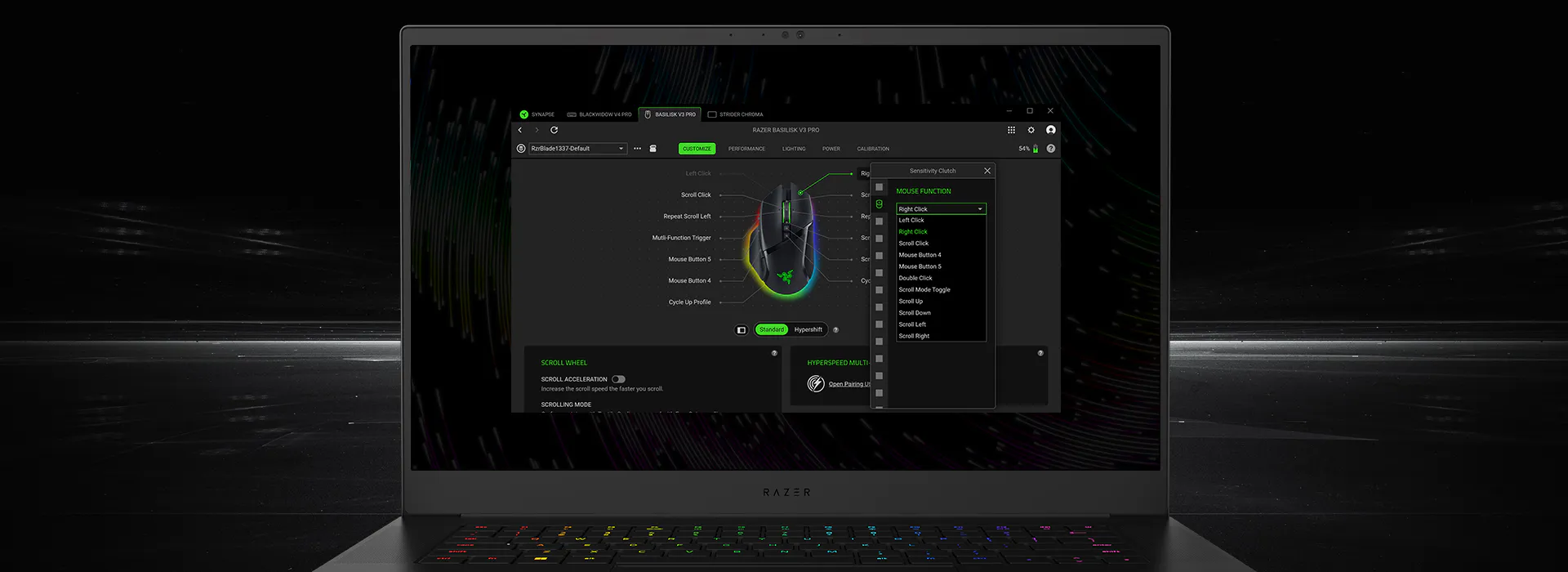
For a mouse, check whether the model exposes sensitivity stages, polling rate, button assignment, Hypershift, or onboard-memory controls. For a keyboard, check key mapping, lighting layers, macros, and whether the model has onboard storage. For a headset or audio accessory, check the device module, output path, equalizer, microphone, and spatial-audio controls separately. A family name such as BlackShark, Huntsman, or Basilisk is not precise enough by itself.
If the model appears in Razer's support material but does not load in Synapse, treat that as a detection or installation problem first. Use the official source, connect one device directly, let the module finish loading, and then compare the available controls with the support notes. Do not download an unofficial device pack to fill a missing module.
Legacy branch
Synapse 3 supported devices should be checked when an older Razer product, legacy profile, or discontinued module is the reason you are searching. The Synapse 3 path is not simply an older installer for the current app. Razer's support material identifies it as a legacy branch, and its cloud-service boundary means an old profile workflow may not behave like a new Synapse 4 setup.
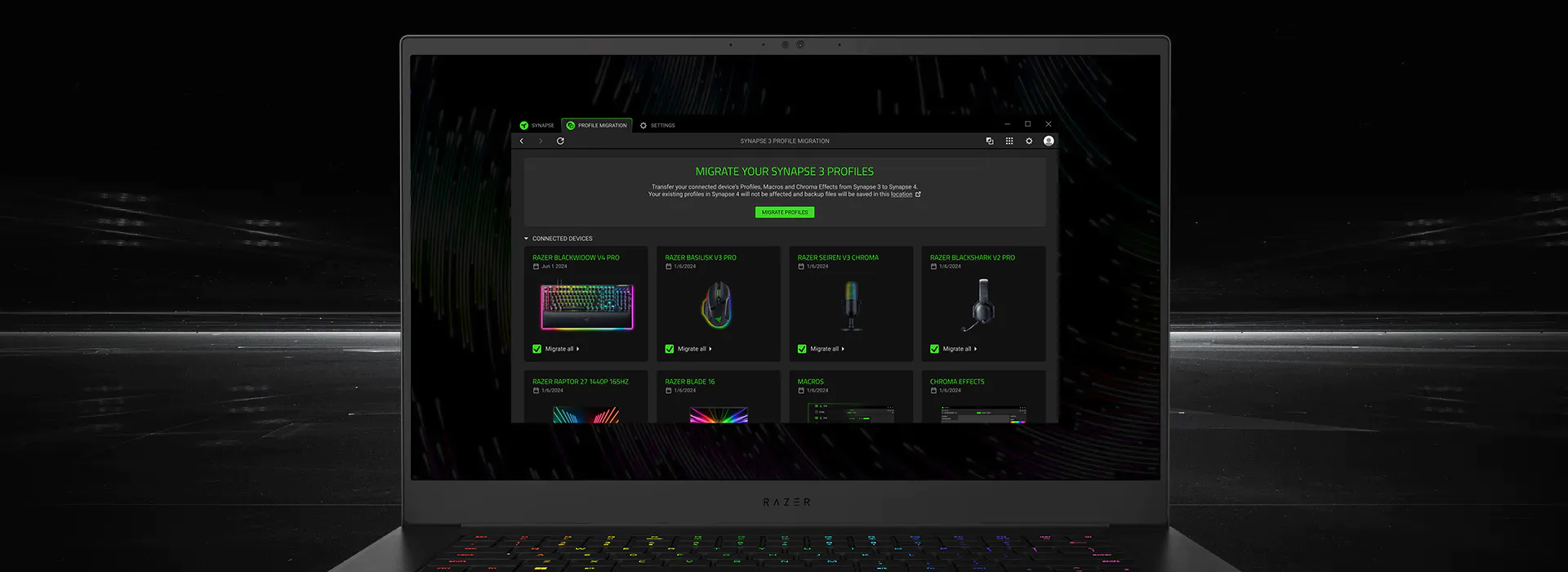
If your device is listed only in Synapse 3 guidance, record the exact model and the settings you need before installing anything. Test whether those settings can live on the device, migrate through Razer's supported Profile Migration tool, or remain available only in the legacy app. A downloaded Synapse 3 installer from a mirror cannot make an unsupported Synapse 4 module appear and can create version conflicts.
When moving to Synapse 4, migrate a small, important profile first. Check buttons, keys, macros, lighting, DPI, and automatic application switching one at a time. Keep your written settings record until the new branch works. For a version decision rather than a device list, use the site's Synapse 3 vs 4 comparison page.
Write down the device, Synapse branch, profile names, key maps, macros, lighting, and DPI values.
Use the SKU or model label instead of assuming that a similar family name has the same support.
Review detected data and move one important profile before migrating the whole library.
Verify buttons, keys, lighting, macros, firmware access, and application switching separately.
Separate support lists
Razer Synapse Web supported devices have their own list and browser requirements. The Web app can be useful for quick device settings, onboard profiles, and Chroma effects, but it is not a drop-in replacement for every desktop module. Check firmware status, the browser, the exact SKU, and the controls visible after the device connects.
The Mac Preview follows another boundary. Razer's Mac page is the source for current Apple silicon and macOS requirements, while Windows Synapse 4 pages describe a different installer and feature set. An Intel Mac reference, a Windows EXE, or a community post about an older Synapse branch is not proof of current Mac support.
If you need a browser path, read the site's Web guide. If you need a Mac download, use the Mac Preview guide. Keeping those intents separate prevents a user from installing a Windows package just because the device name appears in a general supported-devices search.
Before downloading
A useful compatibility check ends with a clear action: install Synapse 4, stay with Synapse 3 Legacy, use Synapse Web, use Mac Preview, or keep the device in basic operating-system mode. Do not begin with a random installer and hope the device list appears afterward.
The same process works for a mouse, keyboard, headset, dock, laptop, or Chroma accessory. It also explains why a device that was once detected can disappear after a branch update: the hardware, module, firmware, operating system, and profile path are separate layers.
Use the model number, not only a family name such as Razer Mouse or BlackShark.
Decide whether you need input, DPI, macros, lighting, audio, firmware, or profile migration.
Use Synapse 4, Synapse 3, Web, or Mac support material for that operating system.
Confirm Windows, browser, or Mac requirements before running an installer.
Connect it without a hub, wait for the module, and verify the one feature that matters most.
When support is unclear
If the exact SKU is absent from the official list, do not substitute a similar product as proof. Try the device as normal USB hardware, check the manual for onboard controls, and keep the settings you need on a documented supported computer when possible. A community post can explain an experiment, but it cannot change the official compatibility boundary.
If the model is listed but Synapse shows no device, separate support from detection. Connect directly, test a different port or cable, restart the app once, and confirm that the current branch and device module are installed from Razer. If the page is blank or the device disappears after an update, use the site's device-detection guide instead of downloading a mystery repair tool.
Do not delete AppData, copy legacy folders, or install several Synapse branches at once while you are still diagnosing the model. Those actions can remove useful evidence. Capture the exact model, operating system, Synapse branch, and visible error before asking Razer support or changing the installation.
Source freshness — October 30, 2026
This is a download-site page, so the source was checked before publication. Razer's Synapse 4 product page returned HTTP 200 and still linked to a compatible-device support page. The official Razer Insider release record published October 23, 2026 lists Synapse for Windows V4.0.86.2610200951 and Chroma for Windows V4.0.63.2610020954; it was edited October 28. No newer public semantic version was found in the sources checked on October 30.
The stable Windows file remains RazerSynapseInstaller.exe at dl.razerzone.com. A direct HTTP check returned 200, MIME type application/x-msdownload, 14,923,464 bytes, and Last-Modified 2026-09-08 05:47:37 GMT. These are source metadata facts, not a malware scan, checksum, or guarantee that the file will never change.
Use the official product page when you want the current context and use the stable CDN file only when a direct installer is appropriate. This site does not host the EXE, does not provide a mirror, and does not call a device compatible merely because a third-party page lists a similar name. Recheck Razer's support list after a major branch or firmware change.
Official references
These first-party pages support the branch, compatible-device, migration, and source-freshness boundaries used in this guide.
FAQ
Start with the compatible-device link on Razer's Synapse 4 product or support page. Match the exact model or SKU and then check the feature you need; a family name alone does not guarantee full module support.
There can be overlap, but the branches are separate. Synapse 3 is a legacy path, and its profiles, cloud behavior, and device modules should not be assumed to match Synapse 4. Use Razer's current branch guidance and test migration with one profile first.
Not necessarily. Windows may provide basic keyboard, mouse, or audio input while Synapse lacks the model module or a particular feature such as macros, Chroma, firmware, or onboard memory.
No. Synapse Web has its own compatible-device list, browser requirements, and feature limits. Check the Web list and firmware state instead of assuming desktop controls are available in the browser.
Razer's Mac Preview has separate requirements and device coverage. Check the current Mac page for Apple silicon, macOS, and exact-device support; do not use a Windows EXE as a Mac solution.
That is usually a detection, connection, module, permission, or branch problem rather than proof that the device is unsupported. Connect directly, verify the official branch, restart once, and follow the device-detection guide before installing a mirror or repair tool.
An offline installer cannot add a missing device module. Use the official Razer source for the branch that supports your operating system, and do not rely on mirrors or packages that promise universal compatibility.