
Open the profile view
Confirm which profiles, game links, DPI stages, macros, and Chroma effects matter before removal.
Uninstall guide
To uninstall Razer Synapse safely, protect important profiles first, remove the installed app through Windows, restart once, and only then decide whether a clean reinstall or driver cleanup is necessary.
This guide separates the Synapse app, Razer device drivers, and the hardware-detection layer. It does not send you to a random uninstaller or claim that deleting AppData is a universal fix.
Quick answer
If you are searching for how to uninstall Razer Synapse, start with the state you can observe. If the app still opens, record the Synapse branch, sign-in state, important profiles, DPI stages, macros, Chroma effects, and game links before removing anything. If the app is already broken, protect whatever you can from the profile or account workflow first, then use Windows' installed-app removal path.
The normal sequence is simple: close Razer Synapse and related Razer windows, remove the application from Windows Installed Apps, restart the PC, and test whether the original device still appears in Windows. Only after that baseline should you choose a repair, a clean reinstall, or an official driver-cleanup step. The goal is to remove the app layer without confusing it with firmware or Windows hardware detection.
This page is an independent guide to the decision. Razer's official install and upgrade instructions remain the authority for the supported uninstall and upgrade behavior. The official Synapse 4 product page and installer were checked on August 15, 2026; no public Synapse 4 semantic build number was reliable enough to publish as a latest-version claim.
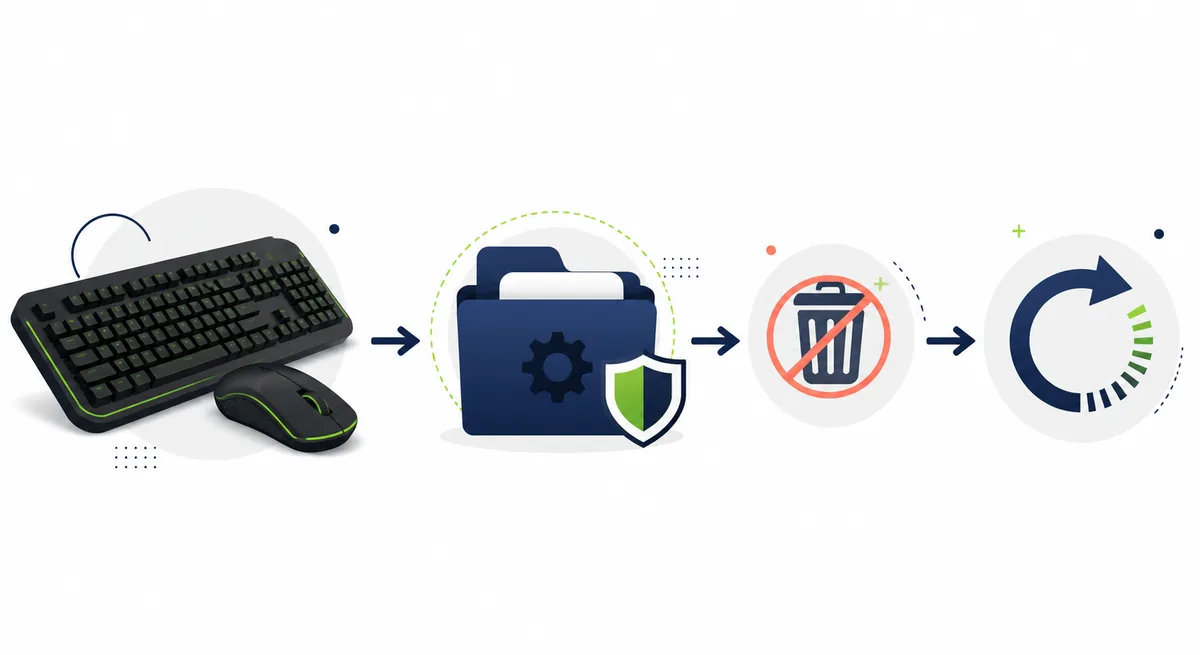
Before removal
Uninstalling the desktop app and deleting every local setting are different actions. A profile may be linked to a device, a game, a Razer ID workflow, or an onboard-memory feature. A Chroma effect is not automatically a complete device profile, and a downloaded macro or lighting file is not a safe backup just because its filename looks familiar.
Open the profile and device pages while Synapse still works. Write down the names of important profiles, the games linked to them, the DPI stages, button assignments, macro purpose, lighting effect source, and any setting you would struggle to recreate. If the page offers a supported sync or migration flow, use that before removal. Do not promise that copying an AppData folder will create a portable backup; Razer's local storage can change between app branches and releases.
If Synapse will not open, do not keep launching installers over the top of one another. Record the exact error, the installed branch if known, the device model, and whether Windows still sees the hardware. That short record makes it easier to choose the right recovery page after the uninstall.
Confirm which profiles, game links, DPI stages, macros, and Chroma effects matter before removal.
Prefer the in-app Razer ID or Profile Migration workflow when it is available for your branch and device.
Note the model, Synapse branch, Windows version, and whether the device appears in Device Manager.
Treat AppData and Razer folders as application-owned data, not as a universal export format.
Five steps
Close Synapse, Razer App Engine, and any settings window that is still open. If the app refuses to close, use Task Manager only to end the clearly identified Razer process once; do not terminate unrelated Windows services or disable security software. A clean restart is easier to diagnose than a stack of forced closes.
In Windows, open Settings, choose Apps, open Installed apps, search for Razer Synapse, and choose the uninstall action shown for your installation. The exact label can vary by Windows build and app packaging, so follow the control that removes the installed Razer Synapse application rather than a similarly named device utility. Let the uninstaller finish before trying another version.
Restart Windows after removal. Then check two separate facts: whether the Razer app is gone from Installed apps, and whether the keyboard, mouse, headset, or controller is still visible to Windows. If the hardware is visible but Synapse is absent, reinstalling the official branch may be enough. If Windows cannot see the device at all, move to cable, USB, driver, and device-detection checks instead of repeating the same uninstall.
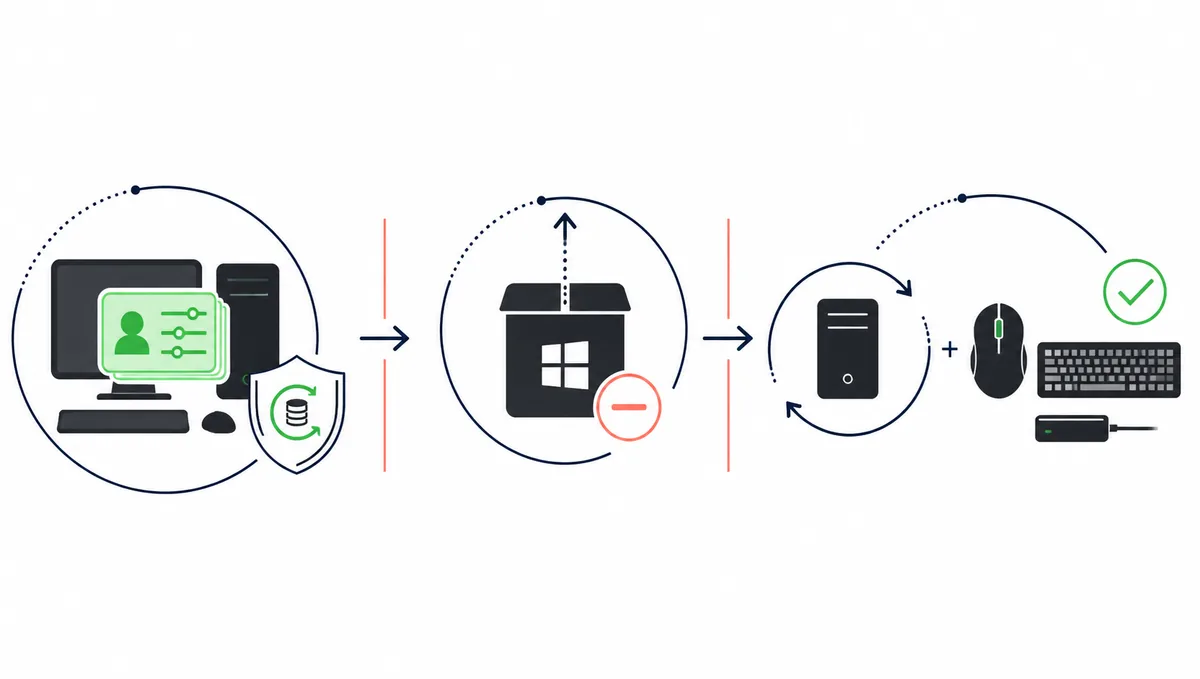
Save profile work, close Synapse, and stop only a clearly identified stuck Razer process if needed.
Use Windows Settings > Apps > Installed apps and search for Razer Synapse.
Start the Windows uninstall action and wait for it to finish; do not run a second installer at the same time.
Let services and device detection return to a normal baseline before changing branches.
Check Installed Apps and Windows device visibility separately before choosing repair or reinstall.
Troubleshooting
When Razer Synapse uninstall is not working, identify where it stops. A button that does nothing, an uninstaller that hangs, an app that returns after restart, and a device that disappears after removal are different symptoms. The phrase why can't I uninstall Razer Synapse is not enough to choose a driver cleaner or a manual folder deletion.
Start with one restart and check whether Windows has a pending update, a locked Razer process, low storage, or a security rule blocking the uninstaller. If the application still appears in Installed Apps, follow Razer's official install or upgrade guidance before using any cleanup utility. If the application is removed but the device is missing, read the device-detection guide; the uninstall itself may not be the remaining problem.
A clean reinstall can be reasonable after normal removal and restart checks fail, but it should be a controlled last step. Use one official source, one Synapse branch, and one test device. Do not install an unofficial Razer uninstaller, a repackaged EXE, or a driver cleaner that asks you to disable protection.
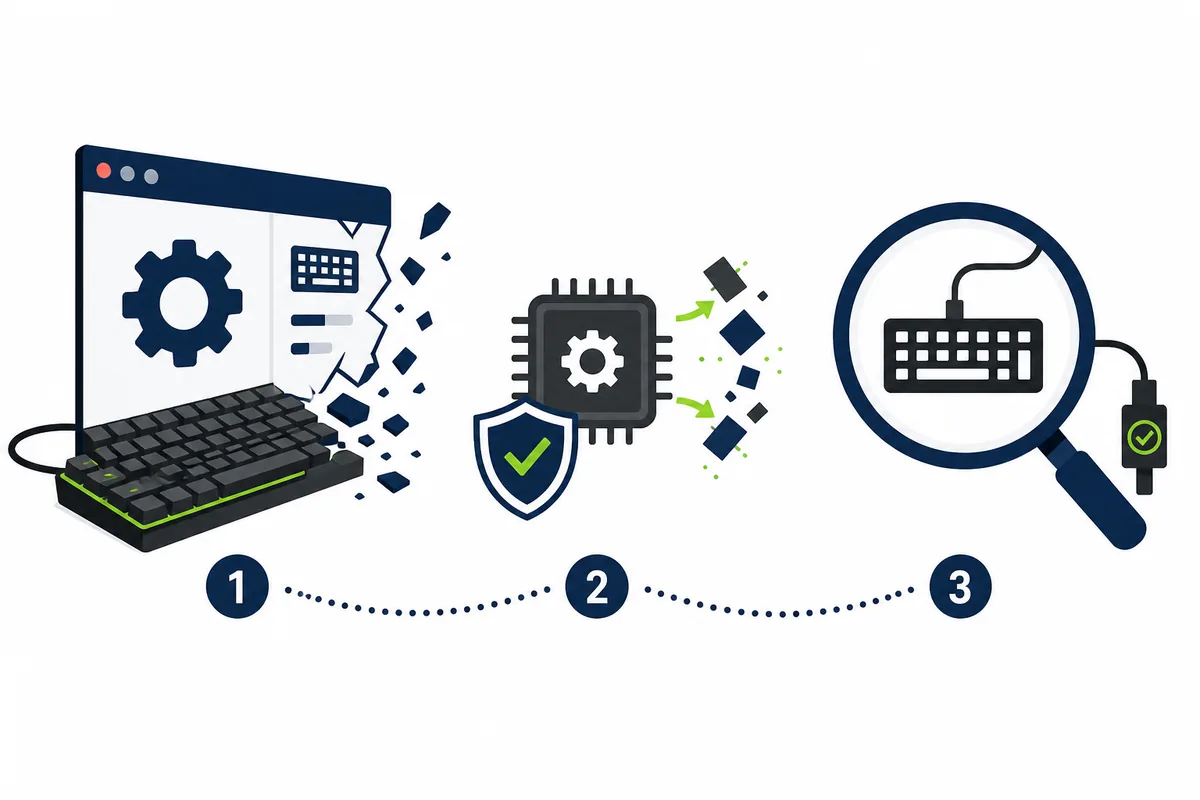
Choose the right fix
The related keyword Razer Driver Clean-up Tool has more estimated demand than the exact uninstall seed, but it does not mean every person searching for an uninstall should run it. An app uninstall removes the desktop application. A driver cleanup operation targets driver state when an official support workflow specifically calls for it. A reset or AppData deletion changes local application data and can remove recovery clues without fixing the device.
Use the least destructive layer that matches the symptom. If the goal is simply to stop using Synapse, remove the app through Windows. If a documented Razer support sequence calls for driver cleanup after a bad device-driver install, follow that sequence and verify the utility's source. If the goal is to restore a missing profile, start with the profiles and sync workflow instead of resetting the whole installation.
Mac is a separate platform path. Do not run the Windows EXE on a Mac or mix a Mac Preview question into a Windows uninstall checklist. For legacy Synapse 3, read the official FAQ and the version comparison before changing an installed setup; Razer states that Synapse 3 cloud services ended on February 3, 2026.
Verified sources
Because this is a software-download guide, source freshness was checked before publishing the uninstall page. On September 23, 2026, the official Razer Synapse 4 product page returned HTTP 200, the official install or upgrade article returned HTTP 200, and the official Synapse 3 FAQ returned HTTP 200. The official Synapse 4 installer endpoint returned HTTP 200 with MIME application/x-msdownload and a 14,923,464-byte file response.
Razer's public Synapse 4 product and install pages did not expose a reliable semantic version, public checksum, or complete release-note record during this check. This page therefore says current Synapse 4 branch instead of inventing a latest build number. If you reinstall, use the official Razer page or the verified Razer CDN path and re-check the source when the page's update date matters.
The direct EXE is a Windows file, not a Mac package and not a Synapse 3 legacy installer. The official install guidance also matters because upgrading to the new Razer Synapse can remove Synapse 3. Read the profile and migration pages before accepting that change.
Official sources
These Razer-owned pages support the uninstall, upgrade, branch, and source-freshness boundaries in this guide.
FAQ
Protect important profiles first, close Razer processes, remove Razer Synapse from Windows Installed Apps, restart Windows, and verify the app and device layers separately. Do not delete AppData or run a driver cleaner unless an official recovery sequence calls for it.
You can reduce the risk by recording profiles, macros, Chroma effects, game links, and device settings before removal and using supported sync or migration features where available. Do not treat an arbitrary AppData copy as a guaranteed portable backup.
A locked Razer process, a pending Windows state, low storage, security filtering, or a damaged installation can block removal. Restart once, confirm the installed app state, and follow Razer's official install or upgrade guidance before trying another EXE.
Not by default. App removal, driver cleanup, and device reset affect different layers. Use the official Driver Clean-up Tool only when a documented Razer support workflow specifically requires driver cleanup.
Uninstalling the desktop app does not physically remove the device, but Synapse controls and Windows driver state are separate. After restart, check whether Windows still sees the keyboard, mouse, headset, or controller before deciding on repair.
No. The Windows EXE and Mac Preview package are different platform paths. Use the Mac guide and official Razer source for the specific Mac model and device instead of applying Windows removal steps.